Free AI Image to Video Generator Online

Use VideoCreate AI image-to-video AI to turn a picture into a video. Simply upload your image, describe the motion, and download the result.

0M+Active creators
0+Ready-made apps
0+Frontier models
0.0★Avg. rating
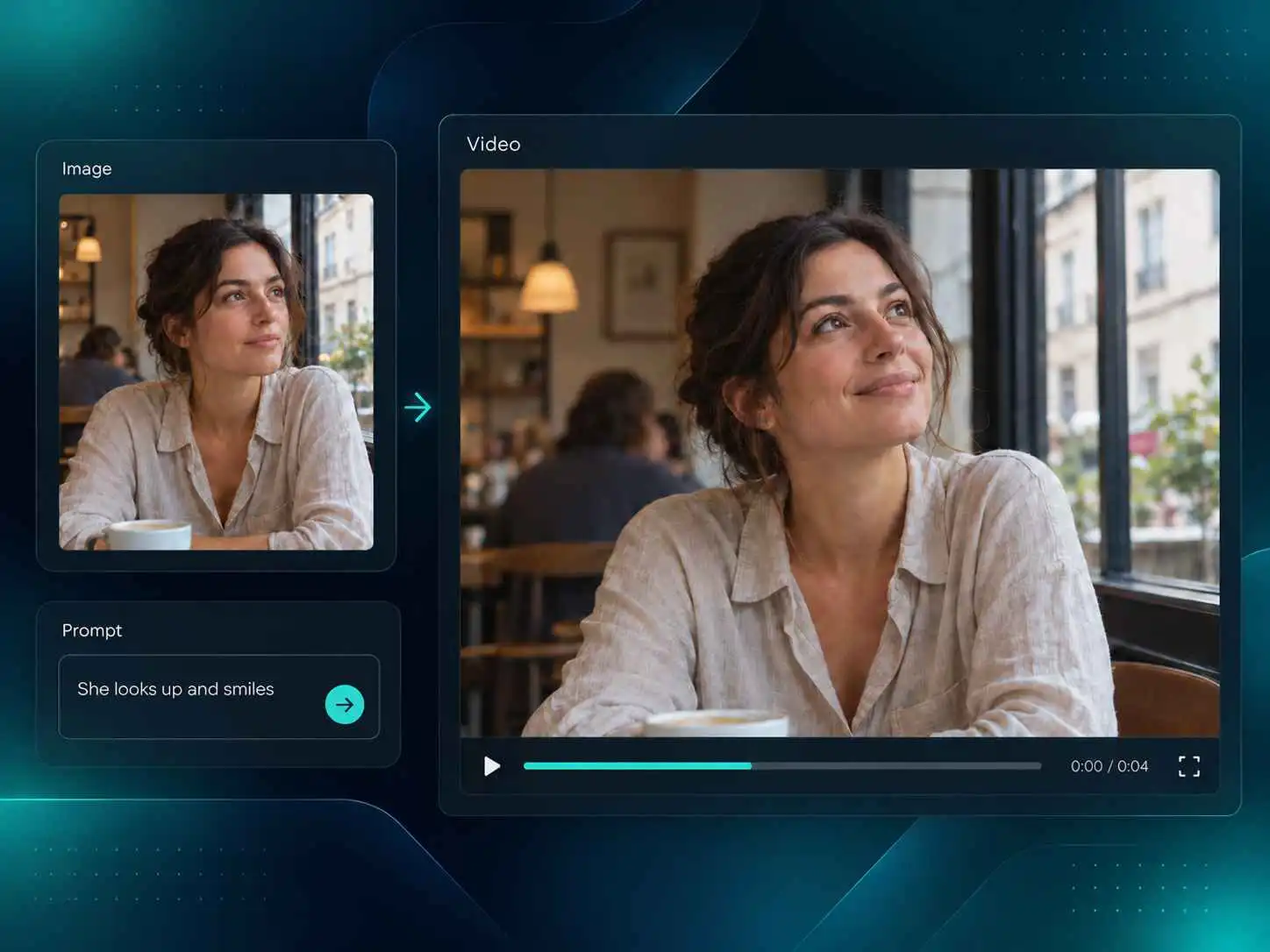
VideoCreate AI image to video AI animating a woman's cafe portrait

Your photo captures a moment. What if you could see what happens next? With this AI image-to-video generator, you can upload a picture and describe how you want it to move. Make the camera slowly move closer, have someone turn toward the lens, or let fabric sway in the wind. The image-to-video AI uses your picture as the starting point and follows your prompt to create a video. Start with a clear subject and one main action to bring the scene to life while keeping the look and feel of your original image. Don’t have an image yet? Try text-to-video to create a scene from a written description.
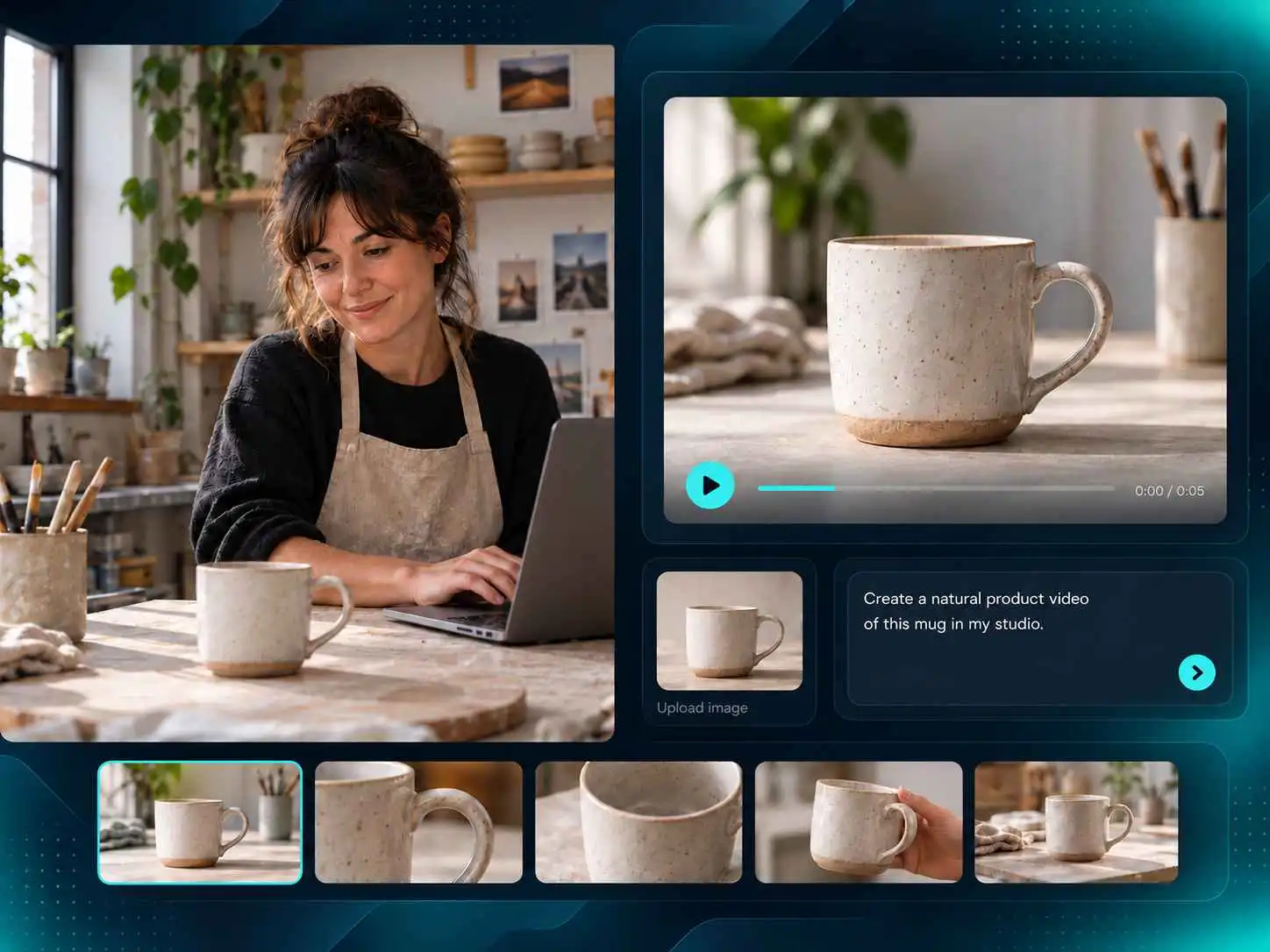
VideoCreate AI image to video AI creating a ceramic mug product video

You have the product photos ready, but your launch could use a video too. An AI video generator from image can turn a product shot into a short reveal, a close-up, or a campaign idea. Describe how you want the product or camera to move, then use the image-to-video AI result to see how the idea looks in motion. It’s a useful way for store owners and marketers to work with the photos they already have. Try a few directions for a product page or social post before deciding whether you need a new shoot.

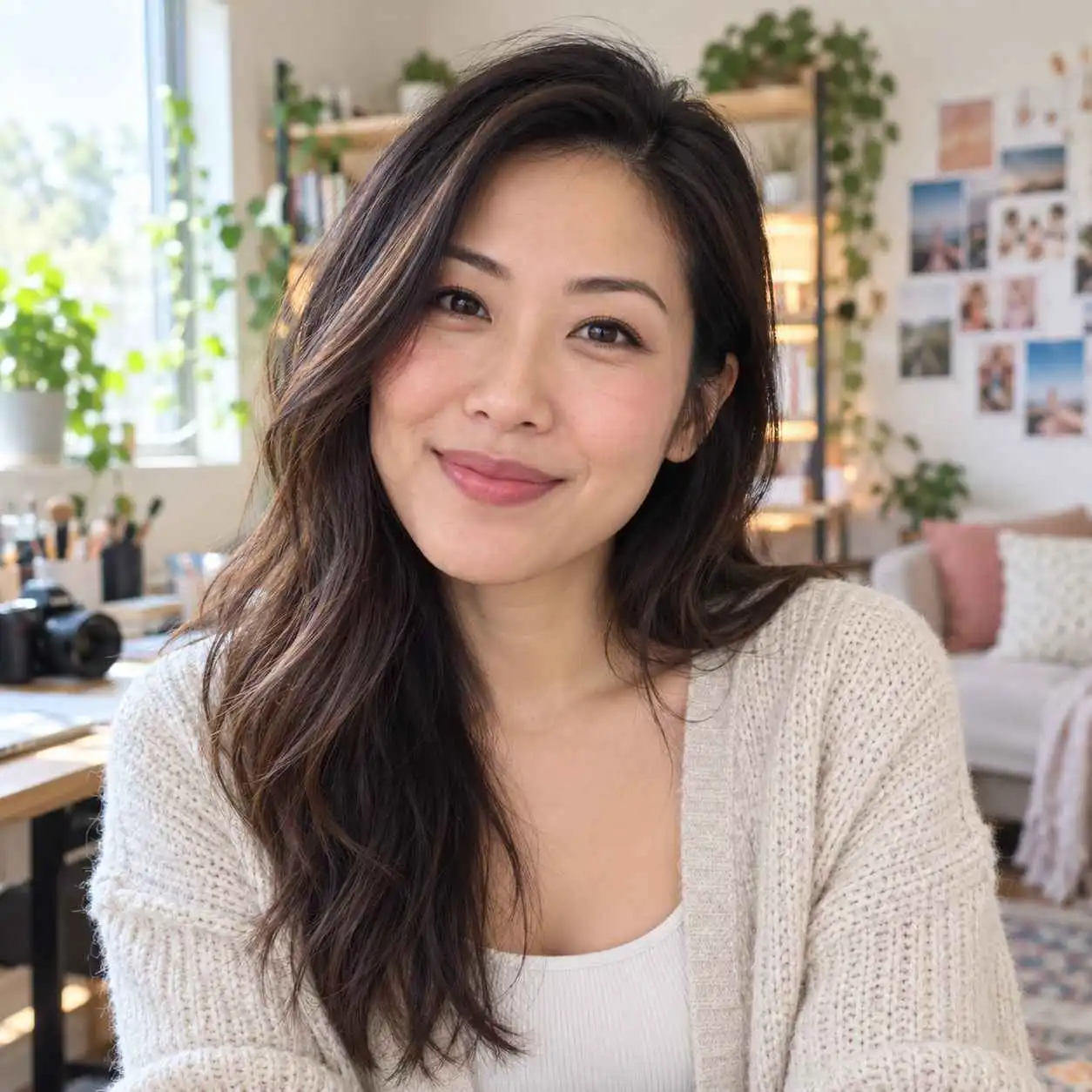
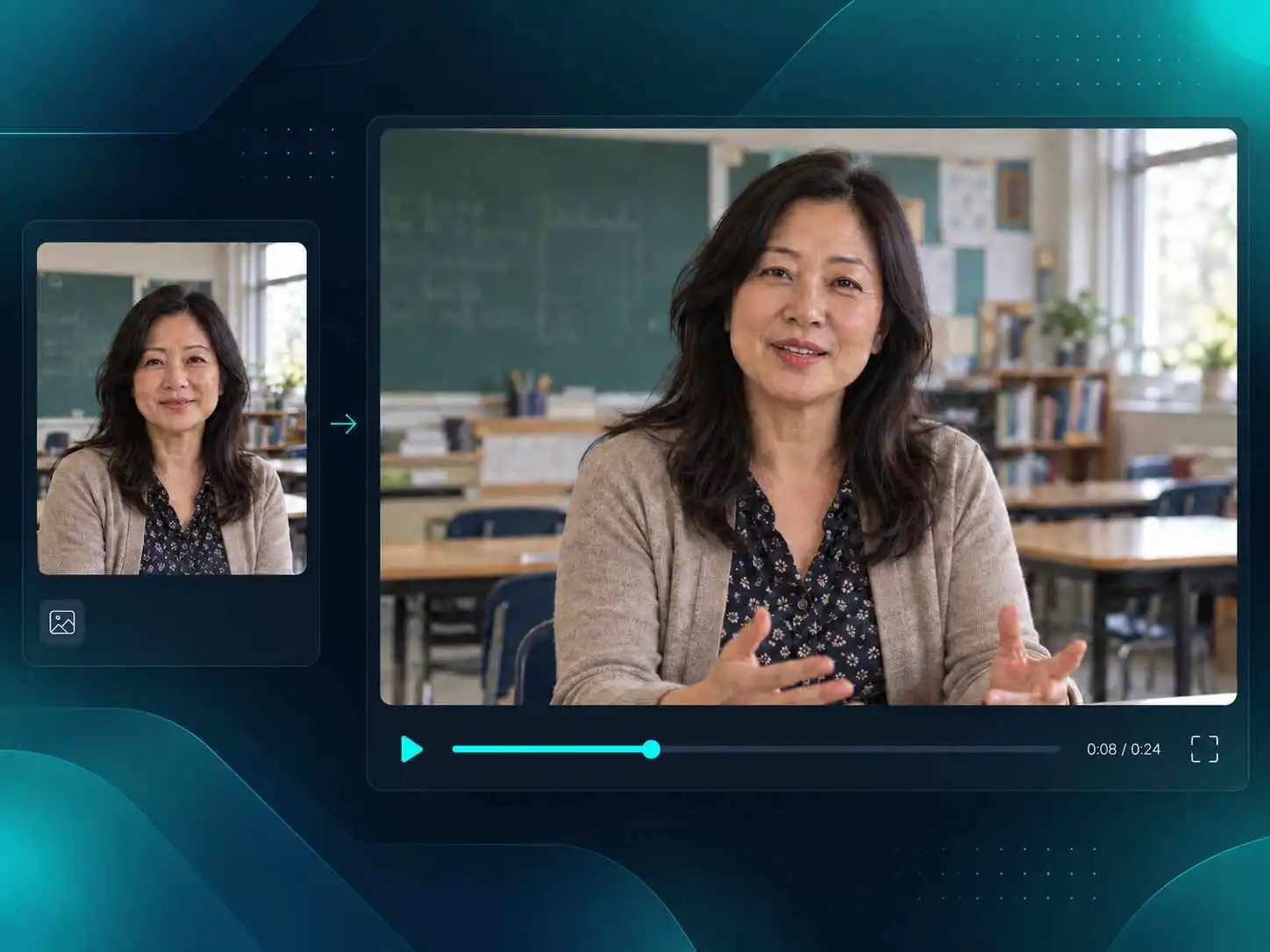
VideoCreate AI image to video AI bringing a teacher's portrait to life

A small movement can give a portrait a whole new feel. With AI photo to video, you can add a gentle glance, a slow camera move, or a breeze in the background. Tell the image-to-video AI what you want to happen, and keep the action simple so the person remains the focus. Use your video for a profile introduction, a tribute, or a short character scene. Start with a well-lit photo where the face is easy to see, then choose a movement that suits the mood of the portrait.

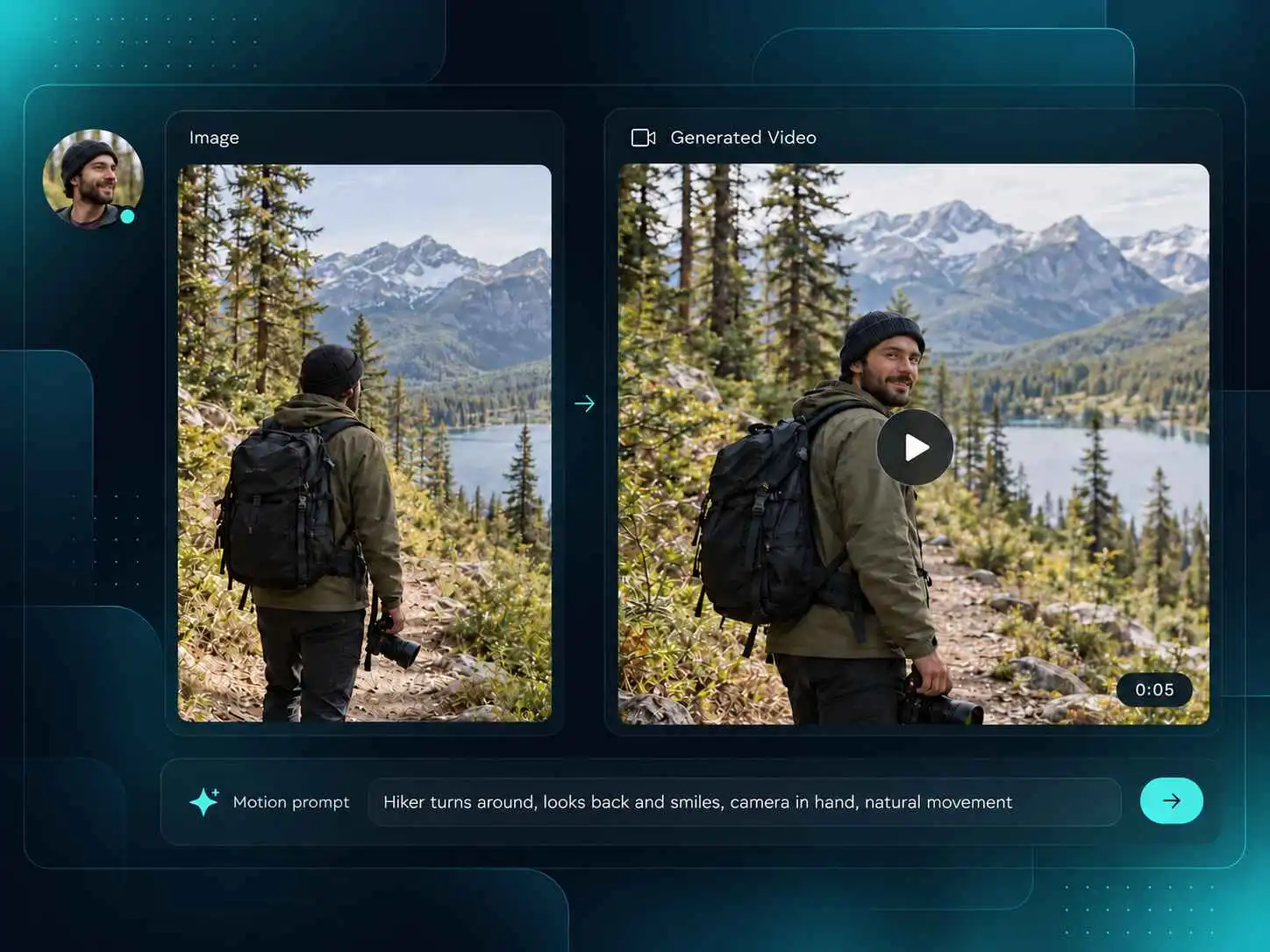
VideoCreate AI image to video AI animating a hiker's photo

Wondering how to make pictures into a video without editing every frame? Upload a picture, describe what you want the subject or camera to do, and let the image-to-video AI create the motion. You don’t need to work with keyframes or separate layers to get started. Once the video is ready, watch it back and see if the movement matches your idea. If the scene feels too busy, try a simpler prompt with one main action and one camera move. Generation time can vary depending on the request and current demand.

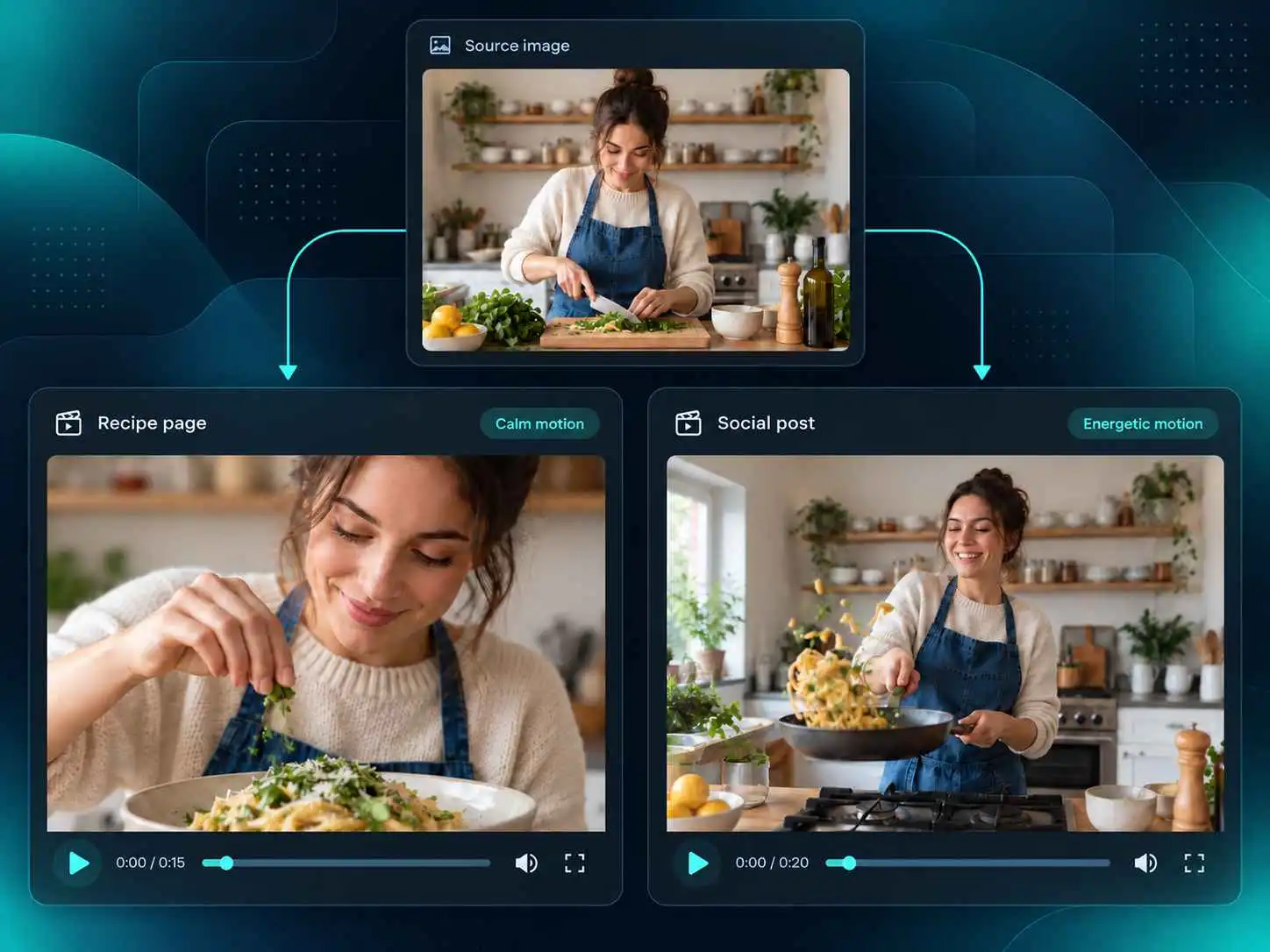
VideoCreate AI image to video AI creating recipe and social media videos

Think about where your video will appear before you create it. A product page might need a slow reveal that shows the details, while a social post may call for movement that catches attention right away. For a presentation, a gentle camera move can add interest without distracting from your message. Once you know what the video needs to do, use image-to-video AI to bring that idea to life. Choose the action you want viewers to notice first and describe the camera movement that helps tell the story.

How to Use VideoCreate AI Image to Video AI Online

1

Upload Your Starting Image

Choose a photo, product shot, illustration, or artwork to animate. Upload a clear image with a visible subject so the image-to-video AI has a good starting point for your video.

2

Describe the Motion

Write a prompt describing what you want to move and how the camera should behave. For example, ask a person to turn toward the camera or describe a slow zoom toward a product. VideoCreate AI uses your image and prompt to generate the video.

3

Preview and Download

Watch your video and check whether the motion matches your idea. If you’re happy with the result, download it. If not, adjust your prompt and try again.

Ways to Use Image to Video AI for Everyday Creative Work

Why Choose VideoCreate for Image to Video AI

Easy to Use

Upload your image, describe the motion you want, and let VideoCreate AI turn it into a video.

Private Creation

Your photos deserve care. VideoCreate AI does not store uploaded user data after creation.

Free Daily Credits

Get 60 daily credits without signing in or 150 after signing in to explore different video ideas.

Bring Images to Life

Use image-to-video AI to add movement to your subject, camera, or background.

Reuse Your Visuals

Turn product photos, portraits, and artwork into videos for social posts, product pages, and campaigns.

No Animation Skills Needed

Create a video from your image without working with keyframes or editing frame by frame.

What Creators Say About Turning Images into Video

Hannah using VideoCreate AI image to video for a product launchHannah ReedE-commerce Owner

“I had photos for our new product but hadn’t planned a video. I tried a slow camera move on one of them, and the first version was a little too dramatic. The next one worked nicely for our launch post.”

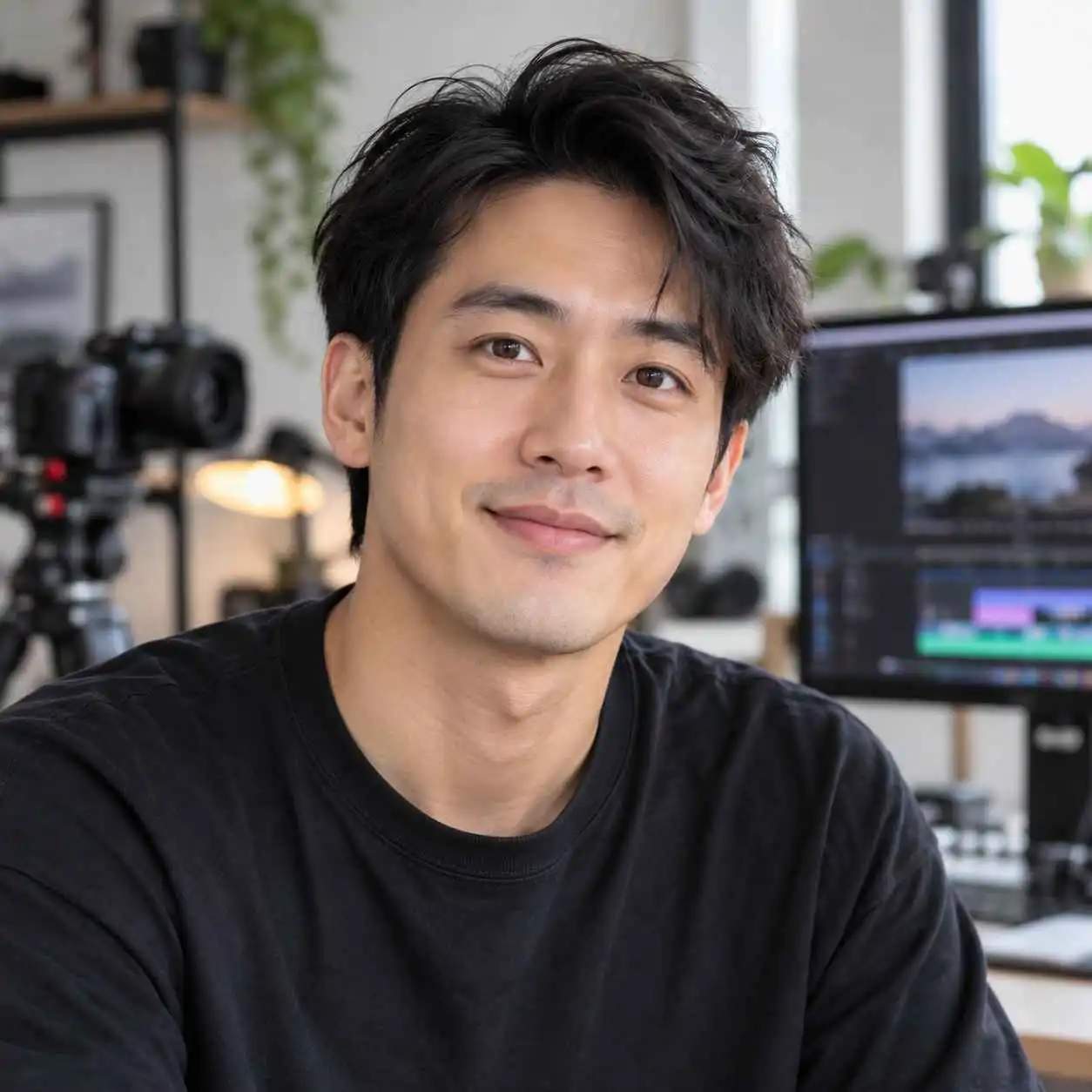
Marcus using VideoCreate AI image to video for social contentMarcus LeeSocial Content Producer

“A client sent over a portrait and asked if we could make it feel less static. I wasn’t sure what to expect, but a slight head turn and a slow zoom gave us a good opening shot. I did tweak the prompt a couple of times.”

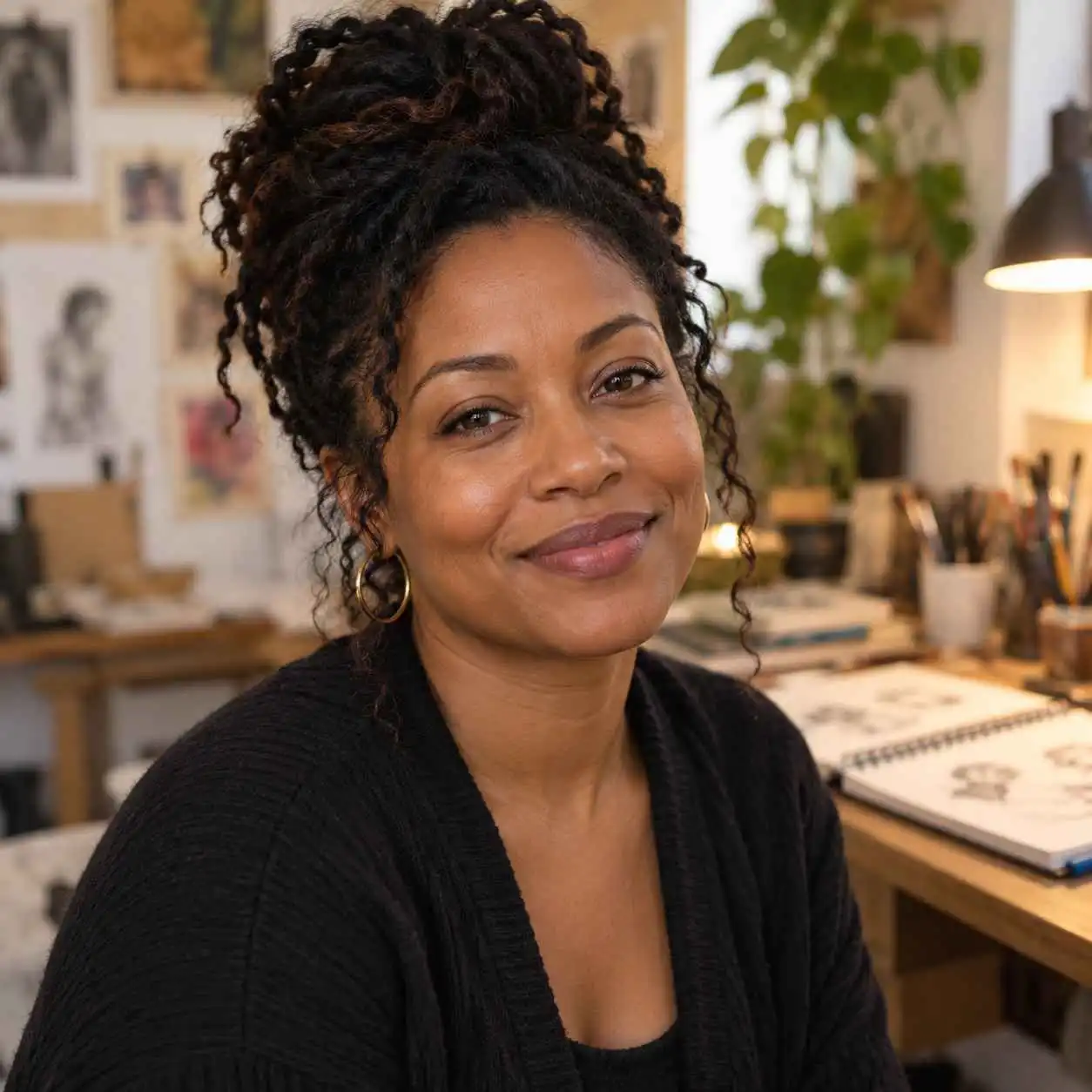
Amina using VideoCreate AI image to video to animate an illustrationAmina BrooksIndependent Illustrator

“It’s fun seeing a character I’ve drawn start to move. Some of my first attempts had too much going on, so I stuck to a small gesture. That gave me a much better idea of how the scene might work as an animation.”

Daniel using VideoCreate AI image to video for a coffee shop postDaniel FosterSmall Business Owner

“We don’t have much video content for our shop, so I tried this with a photo of our coffee. I wanted something simple for Instagram. After a few tries, I got a clip I was happy to share.”

Mei using VideoCreate AI image to video to animate a family photoMei TanContent Creator

“I uploaded an old photo of my grandparents and asked for a gentle smile. It took a little experimenting, but seeing the picture move was surprisingly emotional. I sent the video to my mum straight away.”

Olivia using VideoCreate AI image to video for a campaign conceptOlivia CarterMarketing Manager

“I used one of our campaign images to show the team an idea before a meeting. The clip wasn’t the final ad, but it helped us agree on the camera movement much faster than talking through it.”

Image to Video AI Questions

Upload the picture to VideoCreate AI, add a prompt describing the subject's motion and camera direction, and start generation. Preview the result, refine the prompt if needed, and download the version that fits your project.

Yes. VideoCreate AI provides 60 daily credits without signing in and 150 daily credits after signing in. These credits let new users try the creation flow before deciding how the tool fits their regular work.

Choose a clear image with a visible subject, balanced framing, and enough detail to support the requested motion. Blurry sources, very small subjects, or cluttered compositions give the image-to-video AI less reliable visual guidance.

Name the subject first, then describe one primary action and one camera behavior. For example, ask the subject to turn slightly while the camera moves closer. Focused instructions are easier to evaluate than a long list of competing actions.

Yes. Upload the product image and describe a reveal, rotation, close-up, or environmental motion that supports the campaign idea. The result can help a team review the direction before planning a full production.

No. VideoCreate AI does not store uploaded user data during the image-to-video AI workflow. You should still upload material you are authorized to use and review the applicable terms for your intended publication.

A prompt may contain too many actions, or the source image may not clearly show the subject that should move. Simplify the request, use a clearer image, and describe the most important action before adding secondary camera direction.

Processing time varies with the complexity of the request and current service demand, so there is no single wait time for every video. Keep the prompt focused and review the completed clip against the intended action.

Yes. After the image-to-video AI result is ready, preview the clip and download the version that best matches your prompt and destination.

Use images and other material that you own or have permission to use, then review the current VideoCreate AI terms for the planned personal or commercial context. The tool does not replace rights clearance for the source asset.