Free Text to Video AI Online: AI Video Generator from Text

Turn a written idea into a previewable video draft with VideoCreate AI. Describe the scene, choose a model, and shape a clip for a post, product concept, ad, or story.

0M+Active creators
0+Ready-made apps
0+Frontier models
0.0★Avg. rating
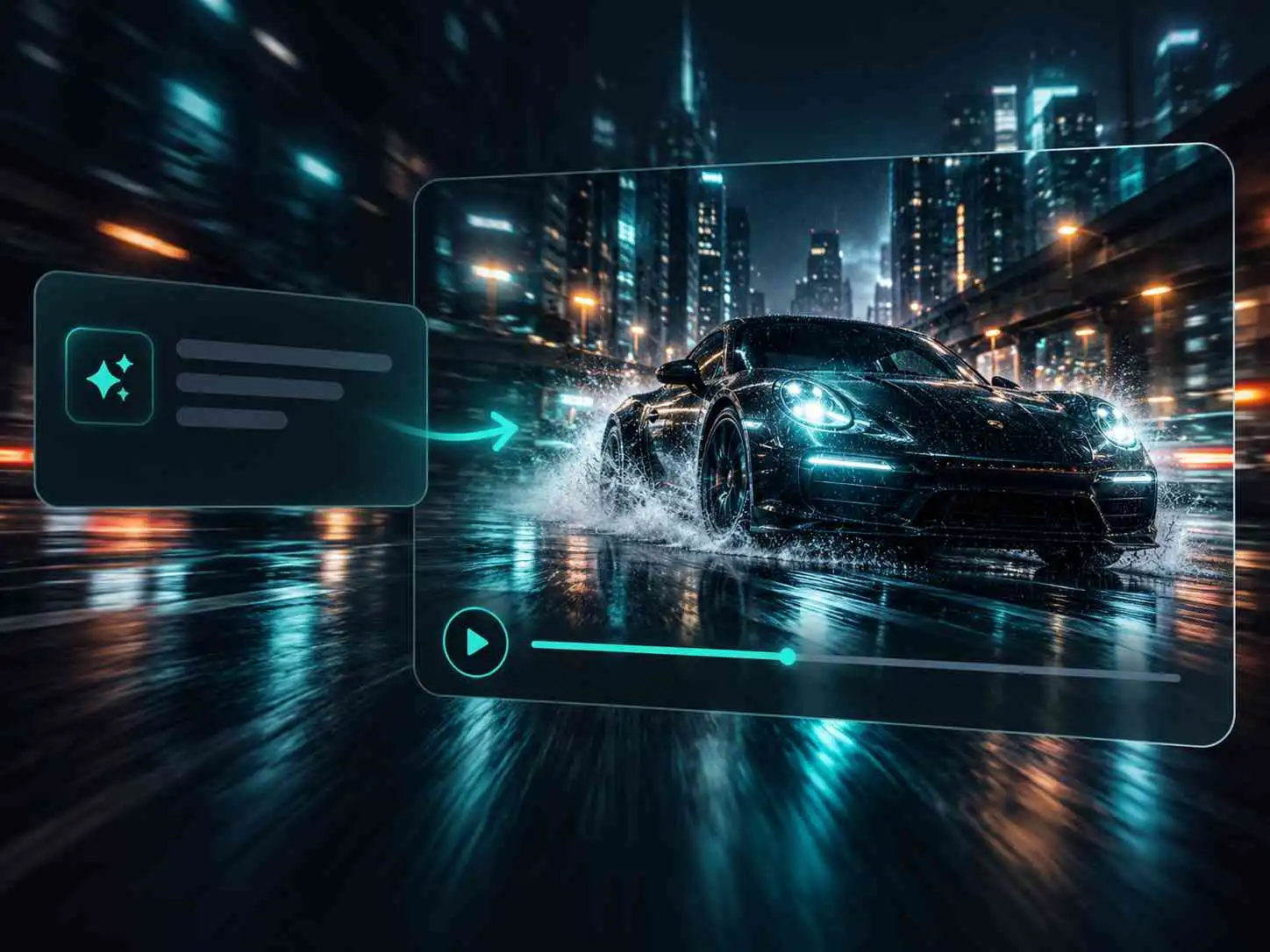
VideoCreate AI text to video AI preview of a sports car in a rainy city

When a hook is still living in a brief, text-to-video AI gives you a visual starting point before you book a shoot. Describe the subject, action, camera movement, lighting, and style, then turn text into video as a short scene you can review with a client or teammate. The result is a concrete draft for testing an opening, mood, or story beat instead of debating an abstract idea. Already have a visual to start with? Use image-to-video to bring it into motion.
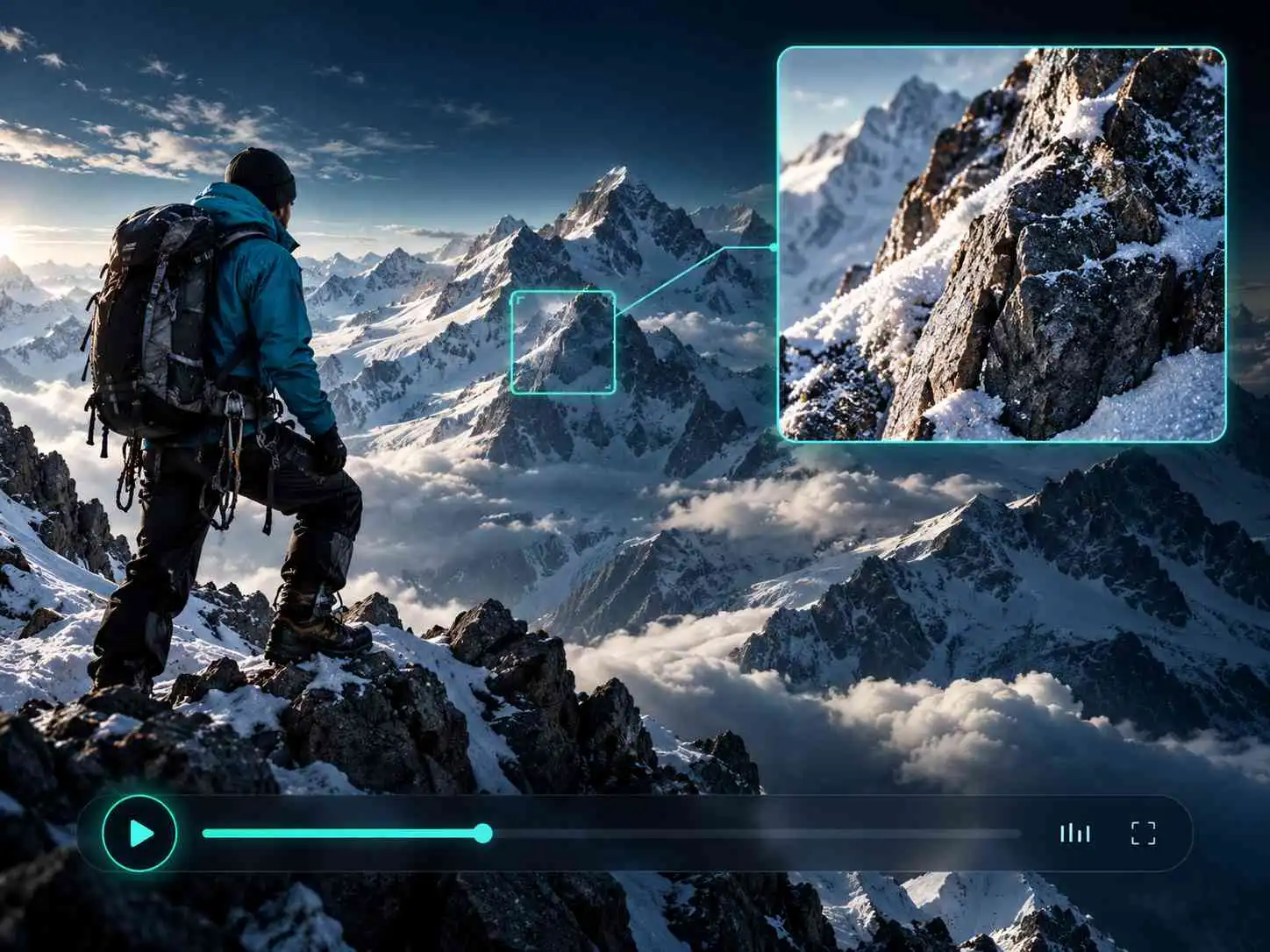
VideoCreate AI text to video AI preview of a climber in snowy mountains

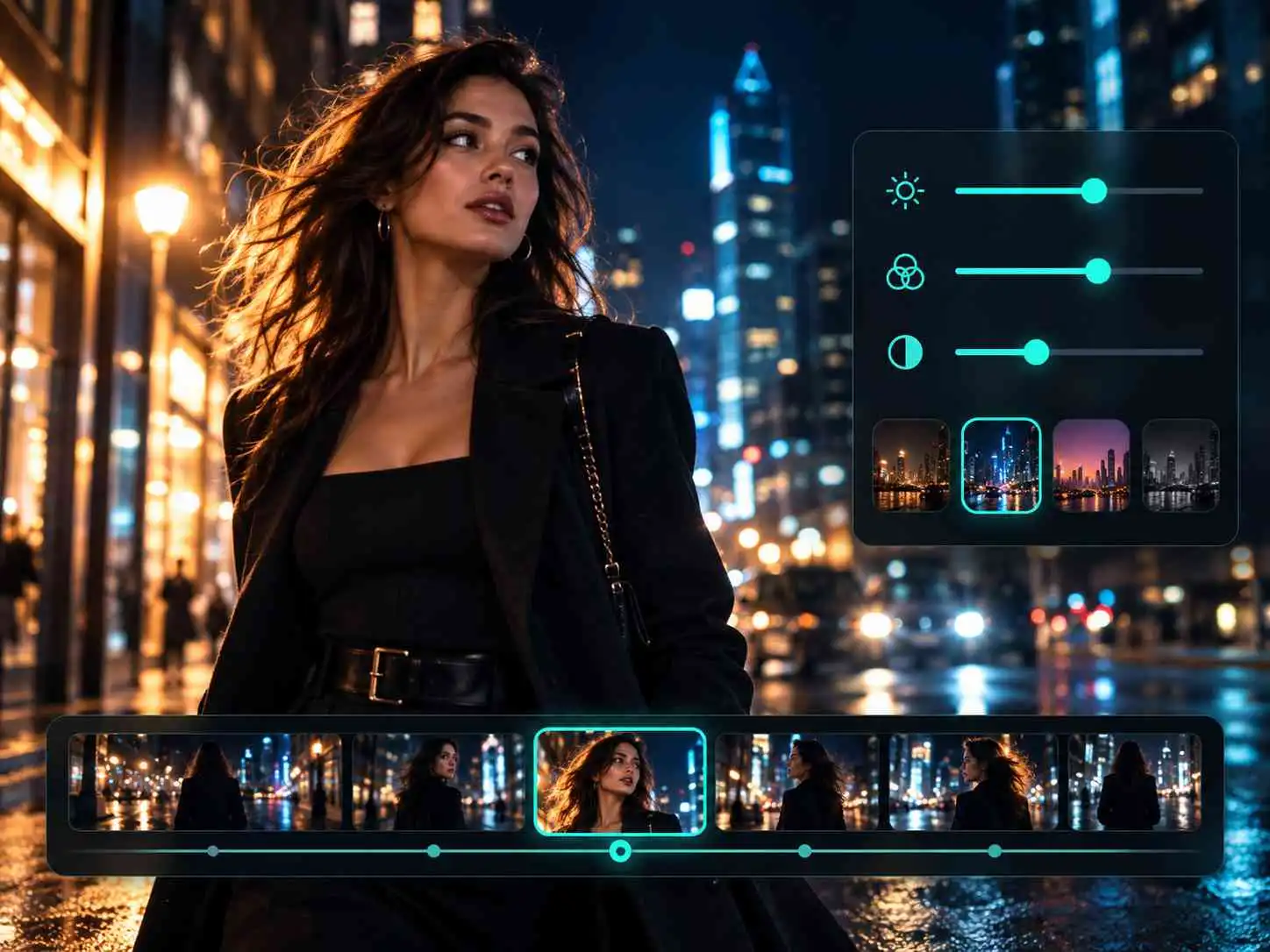
A good prompt needs more than a topic. AI text-to-video online lets you specify the moment that matters: a product entering frame, a character crossing a room, or a camera moving through a city at night. VideoCreate AI gives you a model picker plus controls for aspect ratio, duration, and resolution, so the text-to-video AI output is shaped around the destination rather than left as a generic clip. Those choices make the first draft easier to compare with the brief, especially when a vertical social cut needs a different emphasis from a wide product-page scene.

VideoCreate AI text to video AI scene controls for a woman in a city

One idea often needs several cuts. A text-to-video maker can turn the same brief into different hooks, camera angles, or visual styles for Reels, Shorts, product pages, and ad tests. Start with the written direction, compare model results, and keep the version that makes the product or message easiest to understand. The text-to-video AI workflow helps a solo creator or small team explore more than one creative route without rebuilding every scene from scratch. It also gives reviewers a clear basis for choosing a first frame, a pacing direction, or a call to action before a larger edit begins.

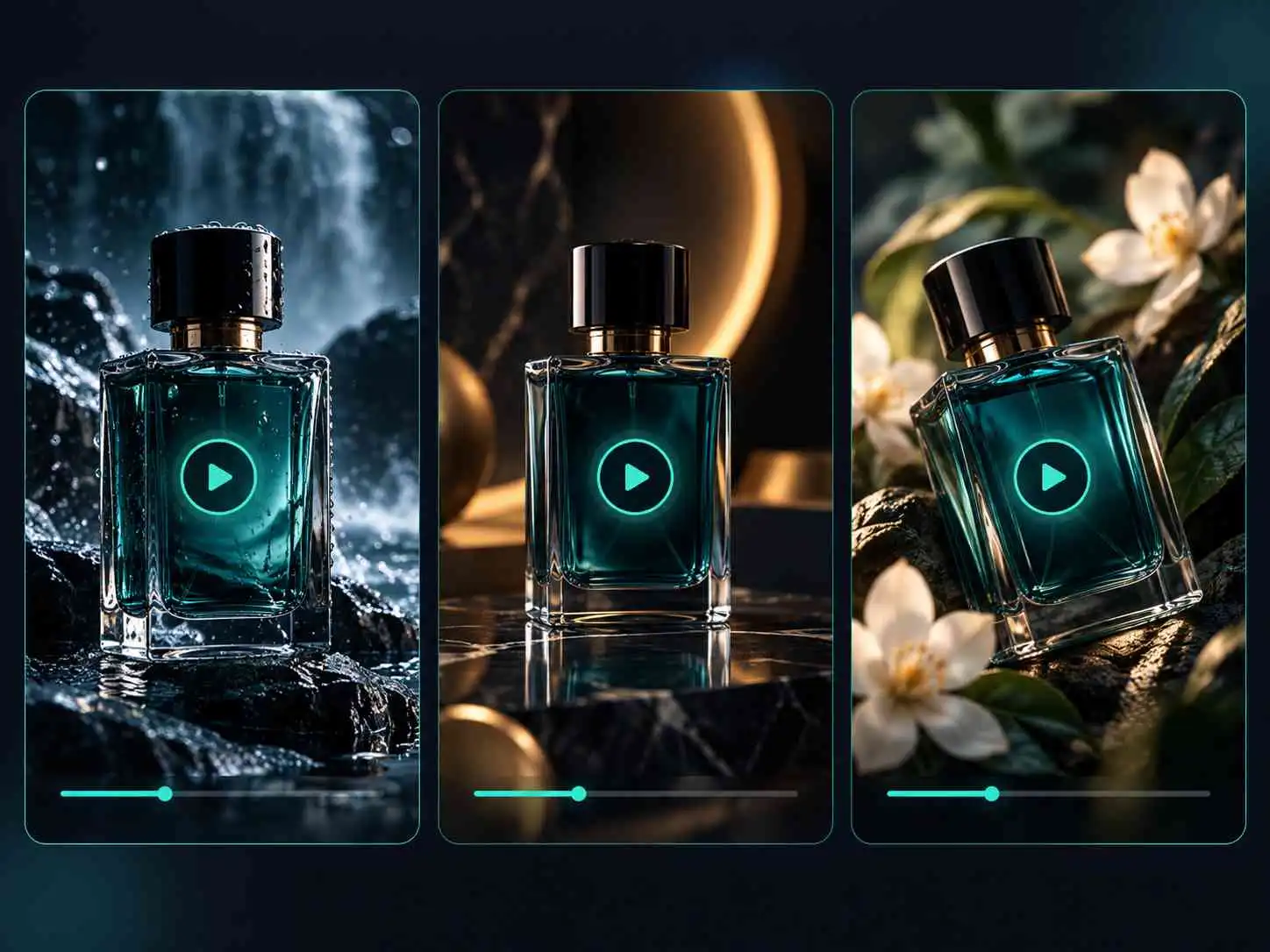
VideoCreate AI text to video AI previews of a perfume bottle in three settings

A cinematic shot or product close-up can lose its impact when fine details look soft. VideoCreate AI lets you create native 4K video clips from a written description, bringing more clarity to scenes, textures, and visual details. Describe a landscape, a product reveal, or a story moment, then use text-to-video AI to generate footage for cinematic concepts, B-roll, or social content. If you’re exploring how to make AI videos with a sharper finish, start with a clear prompt and choose a model that supports 4K output.

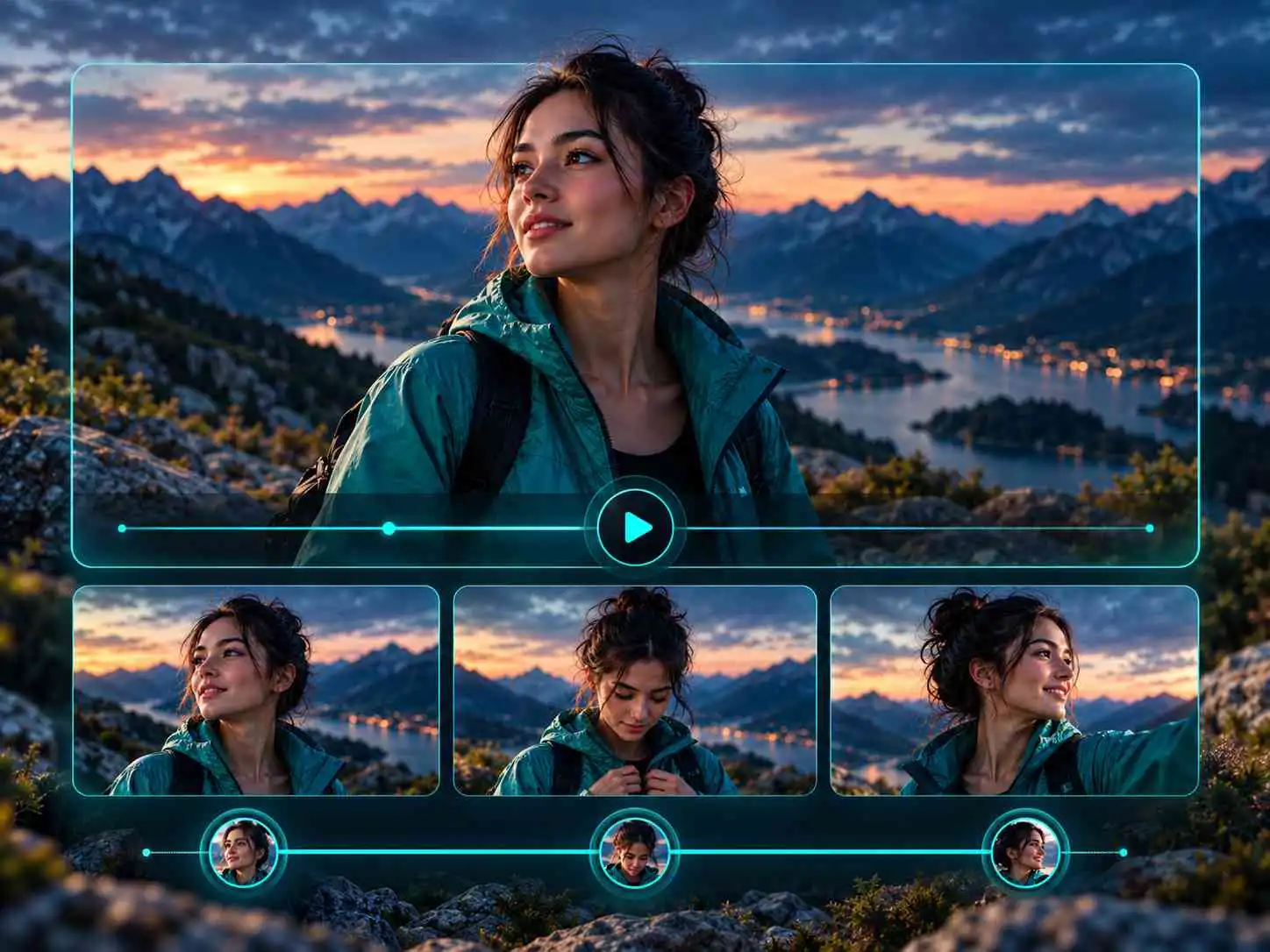
VideoCreate AI text to video AI preview showing a consistent character across video frames

A strong video can lose its impact when a character’s face changes mid-shot or a product takes on a different shape as the camera moves. VideoCreate AI helps keep details such as facial features, clothing, product shape, materials, colors, and logos consistent throughout the clip. Describe the subject and action in your prompt, then use text to video AI to create a more cohesive scene for a product reveal, social post, or ad. This helps viewers stay focused on the story or product instead of noticing unexpected changes.

How to Make AI Videos with VideoCreate AI Online

1

Describe Your Video

Type what you want to see. Include the subject, action, setting, and any details about the camera or visual style. For example, describe a red sports car driving through a city at night.

2

Choose a Model and Settings

Pick a model such as Seedance, Kling, Grok, or MiniMax. Then choose the aspect ratio, video length, and resolution that work for your project.

3

Generate and Download

Click Generate and watch your video. If you want to change the motion or composition, adjust your prompt or settings and try again. Once you’re happy with the result, download it to share or use in your project.

What You Can Create with an AI Video Generator

Why Creators Choose VideoCreate AI for Text to Video AI

Multiple AI Video Models

Explore a range of AI video models in one place. Try the same prompt with different models and compare their motion, style, and visual details to find the right fit for your idea.

Free to Get Started

Start creating with a text prompt and explore your first video ideas for free. There’s no need to master a video editor or build a scene frame by frame.

Easy Output Settings

Choose the aspect ratio, duration, and resolution before you generate. Whether you’re creating a vertical social clip or a wide scene for a presentation, you can set up the video for its intended use.

Consistent Visual Details

Keep the details that make a subject recognizable as the video plays. Text-to-video AI helps maintain facial features, clothing, and product appearance while the subject or camera moves.

Native 4K Output

Generate native 4K clips with a supported model to bring out finer details in your scenes. Create clearer visuals for product showcases, cinematic concepts, and other projects where image quality matters.

Privacy Protection

Your creative ideas deserve care. VideoCreate AI is designed to protect your privacy while you enter prompts and create videos, so you can focus on bringing your ideas to life.

What Creators Say About VideoCreate AI

VideoCreate AI text to video AI creator Nora PatelNora PatelSocial Media Creator

“I always have more ideas than time to film them. I used VideoCreate AI to make an opening shot for a travel reel, and it gave me something I could actually work with. I changed the prompt a couple of times, but that was still easier than setting up a whole shoot.”

VideoCreate AI text to video AI user Evan BrooksEvan BrooksE-commerce Seller

“I wanted a short video for a new product launch but didn’t have any footage yet. I described the kind of scene I had in mind and tried a few versions. One of them gave me a good starting point for our social post.”

VideoCreate AI text to video AI creator Sofia ReyesSofia ReyesCreative Director

“Sometimes a client brief sounds clear until everyone starts picturing something different. I use VideoCreate AI to put a rough scene on screen early. It’s much easier to talk about the lighting or camera angle when we can actually see it.”

VideoCreate AI text to video AI user Marcus ChenMarcus ChenMarketing Manager

“We needed a few different opening ideas for an ad, and I didn’t want to spend a week making mockups. I tried the same concept with different settings and camera movements. It helped our team narrow down which direction was worth developing.”

VideoCreate AI text to video AI user Amelia FosterAmelia FosterTeacher

“I wanted to give my students something visual to look at while we discussed the solar system. I described a camera moving past the planets and used the clip to introduce the lesson. It was a fun way to get the class interested.”

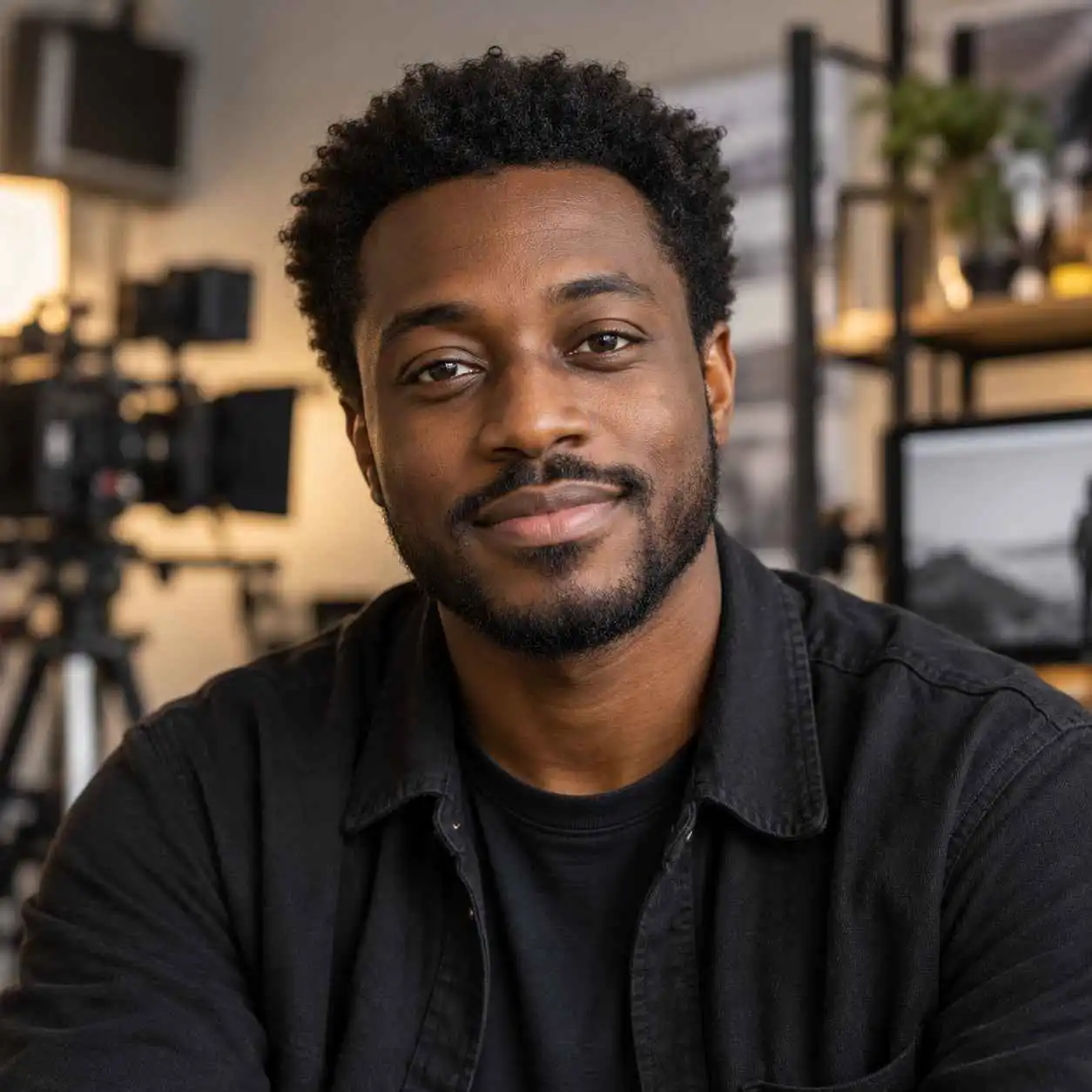
VideoCreate AI text to video AI filmmaker Daniel OkaforDaniel OkaforIndependent Filmmaker

“I often have a shot in my head that’s hard to explain to someone else. With text-to-video AI, I can describe the movement and mood, then show the result to my team. It doesn’t replace filming, but it helps us start the conversation.”

Text to Video AI FAQ

Text-to-video AI turns a written description into a video clip. Describe the subject, action, setting, and style you have in mind, and the generator creates a video you can review and refine.

Yes. You can try VideoCreate AI with 60 free credits without logging in. Log in to receive 150 free credits and explore more video ideas.

Yes. VideoCreate AI runs in your browser, so there’s no need to install software. Enter a prompt, choose a model, adjust your settings, and generate a video online.

Start by describing your subject, what happens, and where the scene takes place. Then add details about camera movement, lighting, or visual style. For example: “A red sports car drives through a rainy city at night as the camera follows from behind.” If the result isn’t quite right, adjust your prompt and try again.

Yes. You can upload an image, such as a product photo or portrait, and describe the movement you want to create. The image gives the AI a visual starting point for your video.

VideoCreate AI offers a range of models, including Seedance, Kling, Grok, and MiniMax. Try different models with the same prompt and compare their styles and results. Available models may change over time.

You can choose from a range of aspect ratios, including 16:9, 9:16, 1:1, 4:3, 3:4, and 21:9. Resolution options include 480p, 720p, 1080p, and 4K. Available settings may vary depending on the model you select.

Commercial-use rights depend on your plan and the current VideoCreate AI terms. Check the terms that apply to your account and intended use before using a generated video in a paid campaign or other commercial project.