Free Pika AI Alternative for Creative Videos

Looking for an alternative to Pika Labs? VideoCreate AI lets you turn a written prompt or an image into a video. Explore different models and create moving scenes for social posts, product ideas, and visual stories.

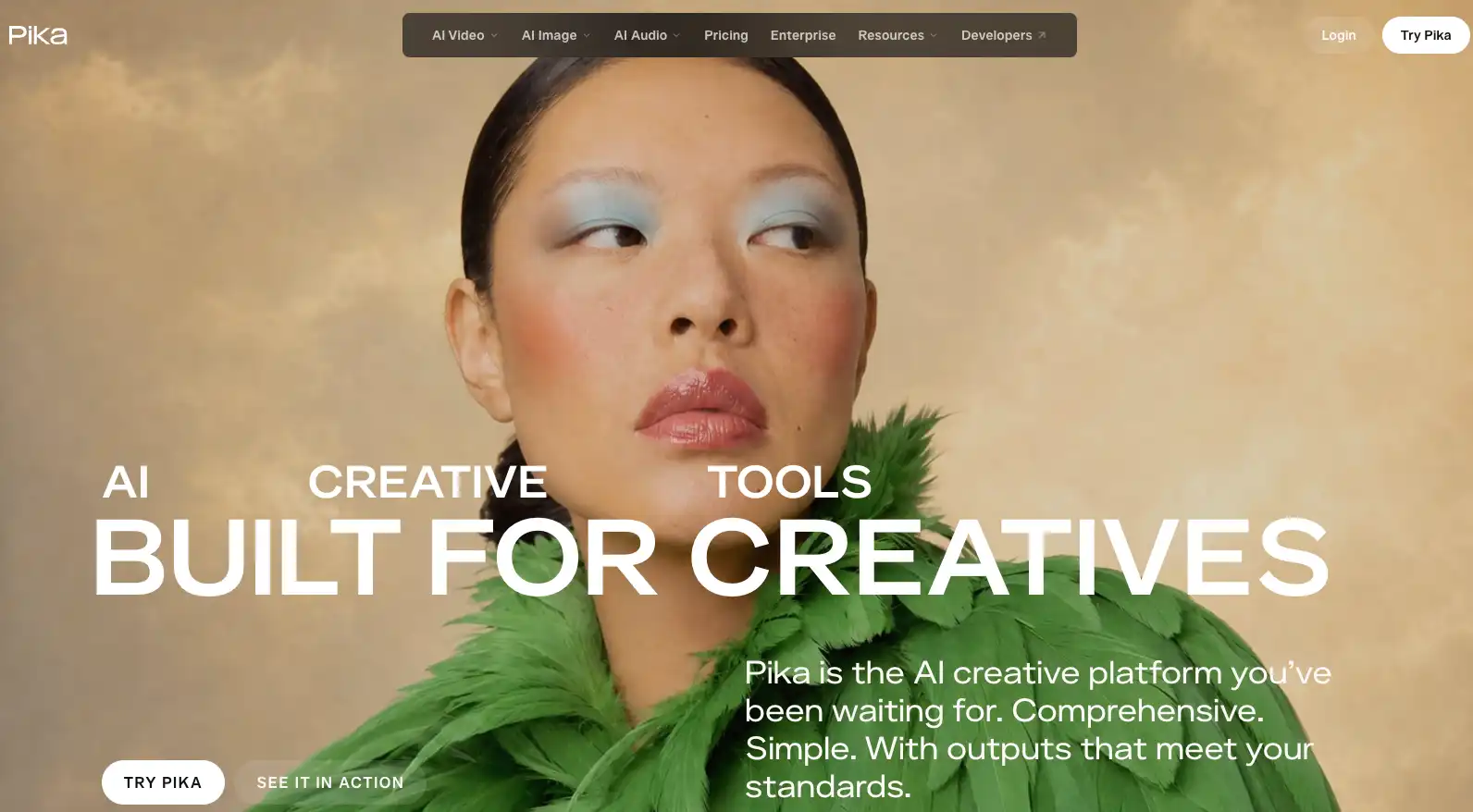
Pika AI homepage showing its AI creative platform, featured on the VideoCreate AI Pika AI alternative page.

Pika AI is an AI video creation platform that turns text or images into videos and offers creative tools such as Pikaffects. For creators looking for a Pika AI alternative, VideoCreate AI provides another way to bring ideas to life. Start with a prompt or an image, explore models such as Seedance, Kling, and Grok, and adjust the available settings to create a video that fits your project.
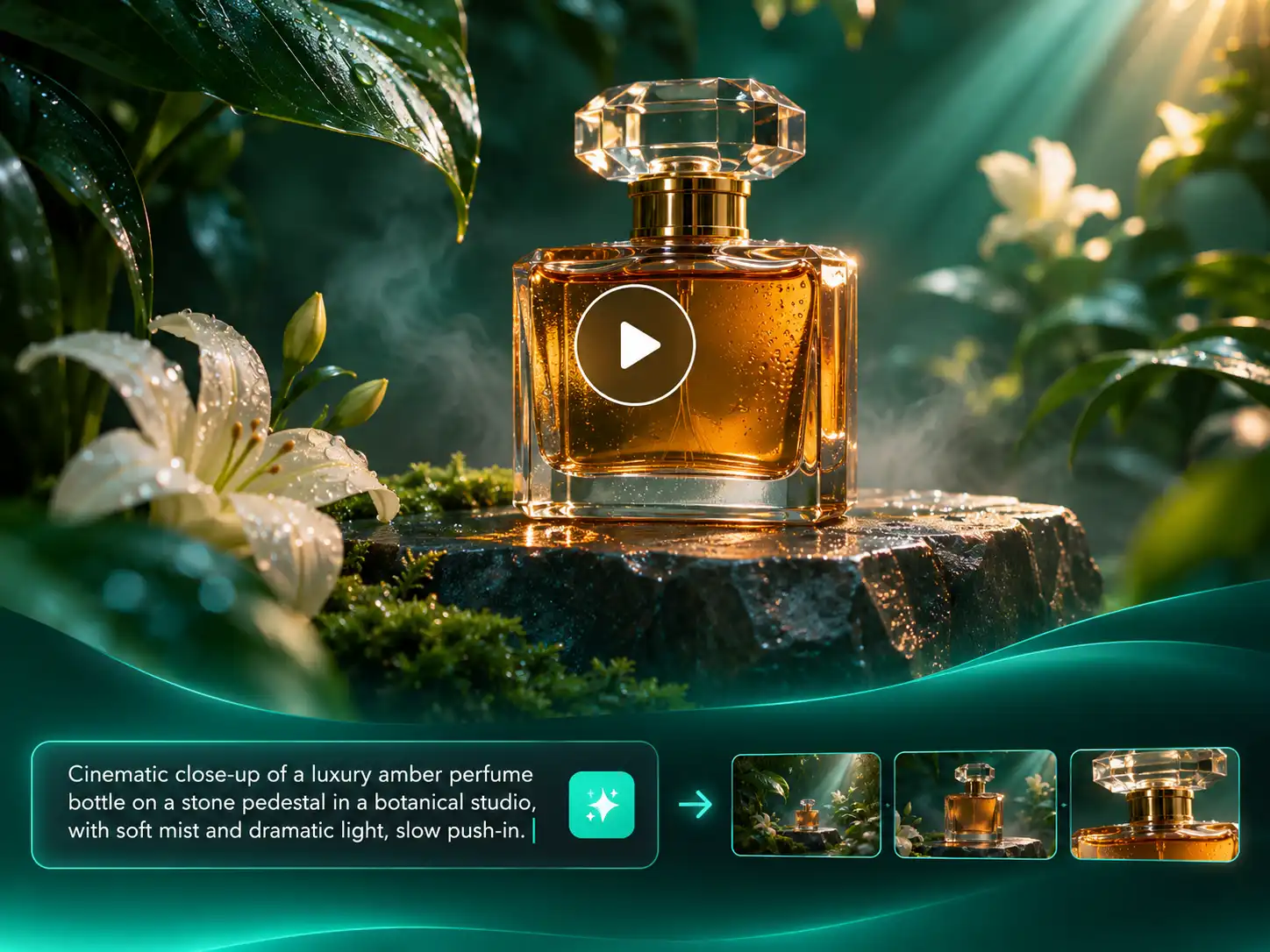
VideoCreate AI Pika AI alternative turns a text prompt into a cinematic perfume video.

A good idea does not need a camera crew to take its first shape. Describe a subject, an action, and the setting, then use this Pika AI alternative to generate a video draft. Try a slow camera push toward a product, an animated character entering a room, or a landscape changing with the light. Adjust your description and create another version when you want to explore a different direction.

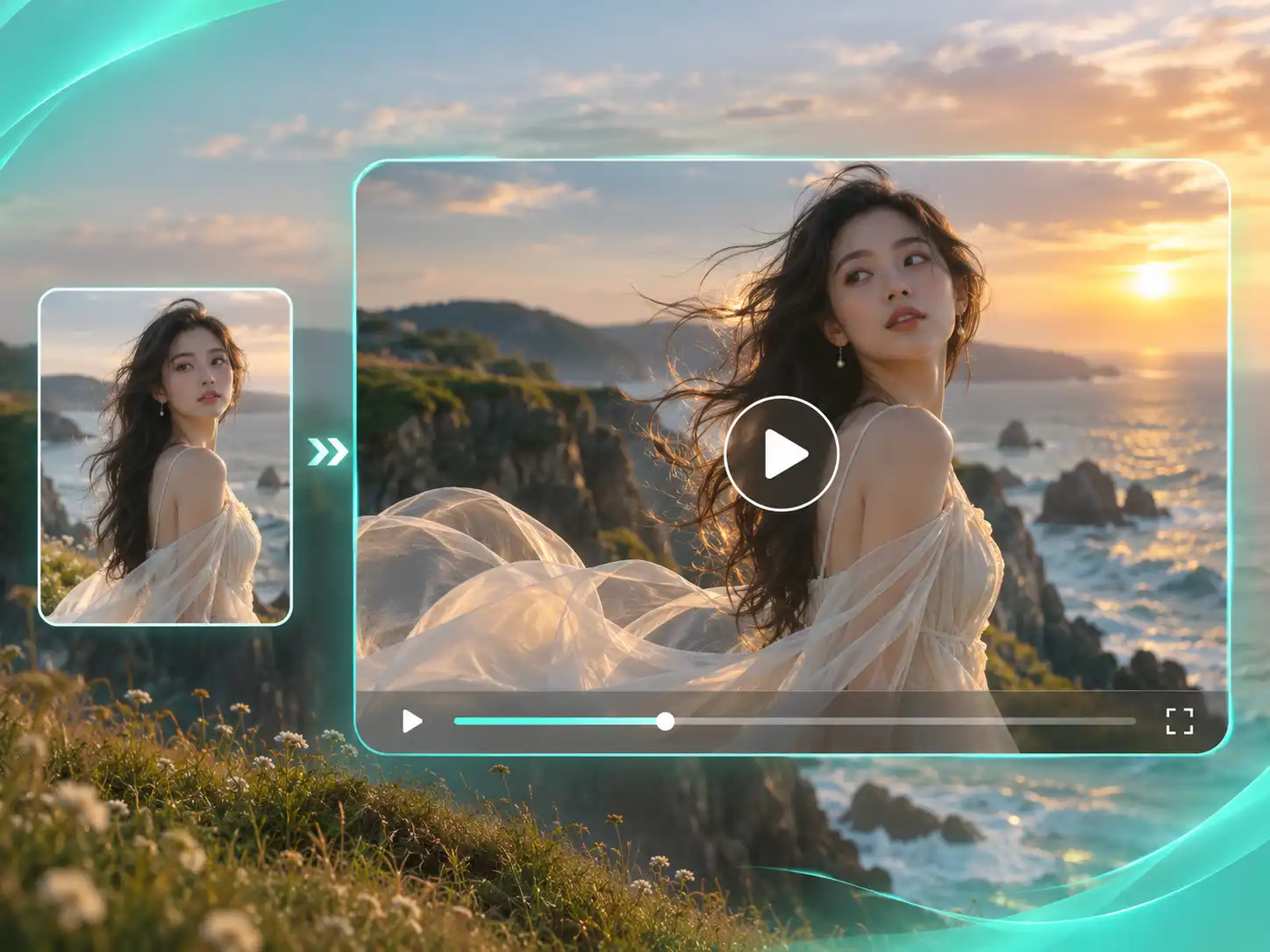
VideoCreate AI Pika AI alternative animates a portrait with a head turn and flowing fabric.

A photograph captures a scene, but movement can show what happens next. Upload a product image, portrait, or illustration and describe the motion you want to see. A gentle turn, drifting fabric, or a slow camera move can add life to your starting image. Begin with one clear action, then refine the prompt after watching the result.

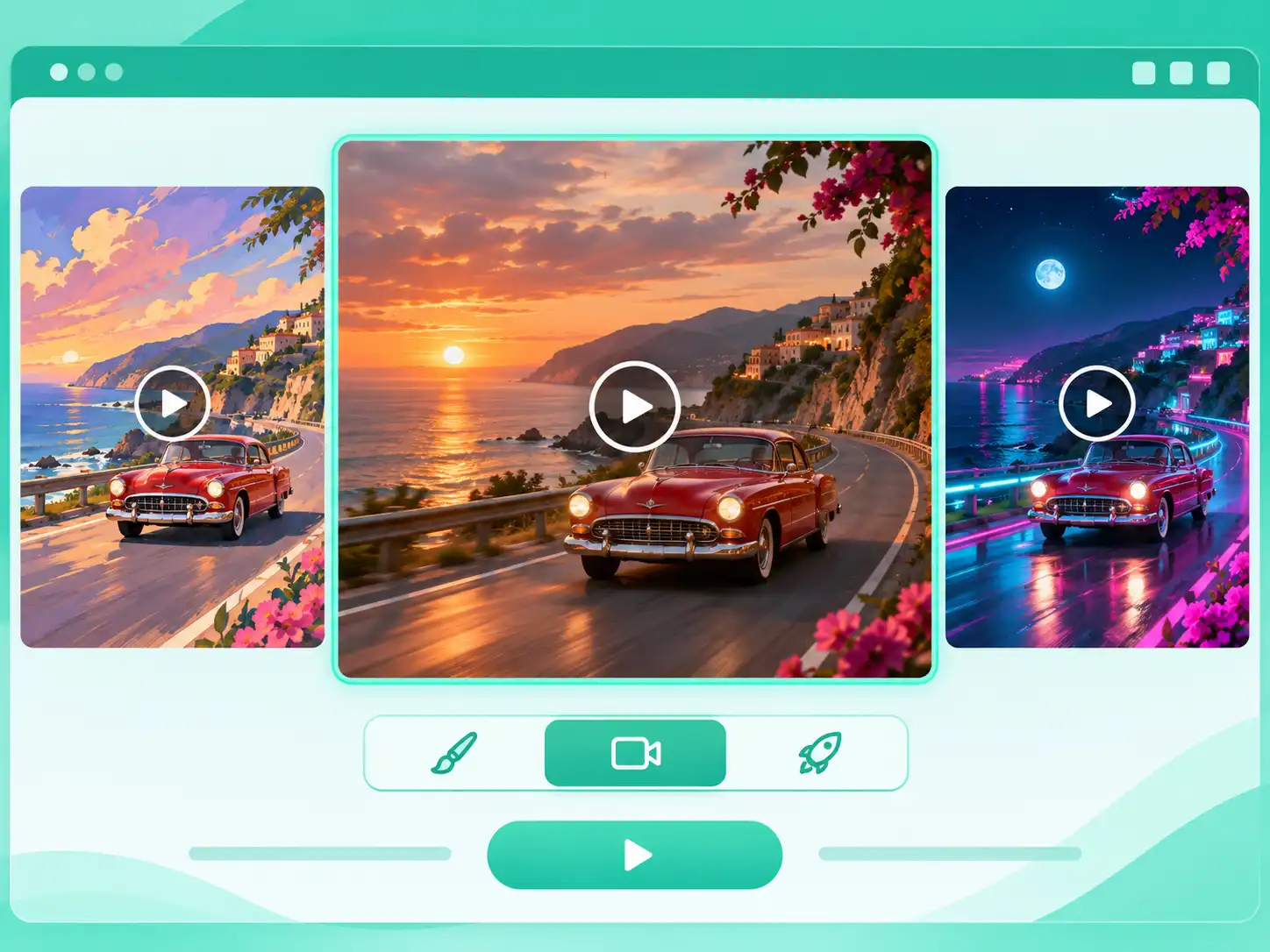
VideoCreate AI Pika AI alternative shows a coastal car scene in three video styles.

Different projects call for different looks and levels of control. VideoCreate AI brings multiple video models into one workspace, so you can explore options without moving between platforms. Choose an available model, adjust its settings, and see how it interprets your idea. Try a different model when you want to explore another visual style or creative direction.

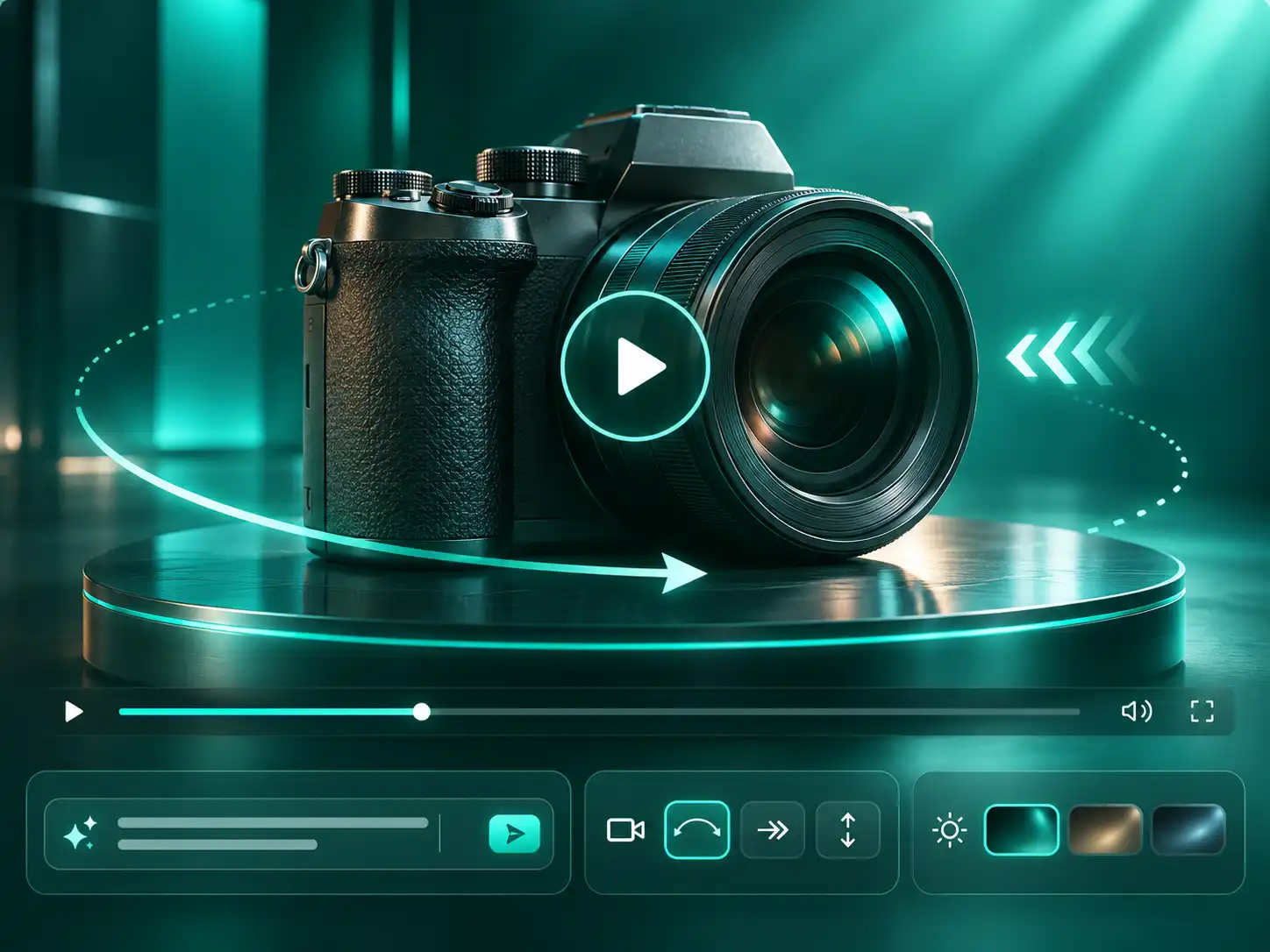
VideoCreate AI Pika AI alternative illustrates camera movement around a product.

A useful video starts with more than a subject. Describe how the person, product, or camera should move, and add details about the setting and mood. Ask for a slow pan across a room or a close-up of a product turning toward the light. If the first result is not quite right, adjust the action or camera direction and generate another version.

Pika AI vs. VideoCreate AI

Both Pika AI and VideoCreate AI help you create videos from text or images. Compare their models, creative tools, and available settings to find the workflow that fits your project.
Pika AI vs. VideoCreate AI
FeaturePika AIVideoCreate AIRecommended
Free Access
✓Free plan available. Credit availability varies
✓Start creating with free credits
Model Selection
✓Pika models and other available models
✓Explore VideoCreate, Seedance, Kling, Grok, MiniMax, and more in one workspace
Text to Video
✓
✓
Image to Video
✓
✓
Video Resolution
✓480p, 720p, and 1080p available with Pika 2.5
✓480p, 720p, and 1080p options
Video Duration
✓Up to 30 seconds with supported models
✓Options range from 2 to 30 seconds
Aspect Ratio
✓Available options vary by model and tool
✓Options include 16:9, 9:16, and 1:1
Video Audio
✓Audio models and tools available
✓Supported by select models
Creative Effects
✓Creative tools such as Pikaffects
✓Explore visual styles and motion through prompts and models
Watermark-Free Downloads
✓
✓
Best For
Creators who want to use Pika’s models, effects, and other available tools
Creators who want to start with free credits and explore multiple models and video settings in one workspace

Pika AI: Pros & Cons

Alternative
  • ✓

    Ready-made creative effects. Use Pikaffects to add playful effects, such as squishing or melting, to photos.

  • ✓

    Transitions between images. Use Pikaframes to create motion between multiple still images.

  • ✓

    Sound for existing videos. Use Pika Soundtrack to generate music, ambience, and sound effects that match your footage.

  • ✓

    Video editing tools. Use tools such as Pikadditions to add elements to an existing video.

  • −

    Features are spread across tools. Open the relevant tool to create effects, image transitions, or sound.

  • −

    Some features depend on your plan. Available options and credit costs vary by tool, model, and plan.

VideoCreate AI: Pros & Cons

Recommended
  • ✓

    Multiple models in one workspace. Explore VideoCreate, Seedance, Kling, Grok, MiniMax, and more to try different video styles.

  • ✓

    Videos up to 30 seconds. Use Seedance 2.5 to give character actions, product showcases, and stories more time to unfold.

  • ✓

    Up to 50 reference assets. Combine images, video clips, and audio with Seedance 2.5 to guide the scene, movement, and atmosphere.

  • ✓

    Flexible video settings. Adjust the available aspect ratio, duration, and resolution to fit your project.

  • ✓

    Free credits to get started. Try available models and ideas before choosing whether to get more credits.

  • −

    Settings vary by model. Available durations, resolutions, aspect ratios, and audio options depend on the model you choose.

How to Use This Pika AI Alternative

1

Describe Your Idea or Add an Image

Enter a prompt for the scene you have in mind, or upload an image as your starting point. Include the subject and one main action to give the model clear direction.

2

Pick a Model and Adjust Your Settings

Choose from models like VideoCreate 1.0 and 2.0, Seedance 2.0, Seedance 2.0 Mini, Seedance 2.5, Grok Video, Kling AI 2.6, Kling AI V3 Omni Video, and MiniMax H3. Then set your video’s aspect ratio, duration, and resolution. Depending on the model, options may include 16:9 or 9:16, durations from 2 to 30 seconds, and resolutions from 480p to 1080p. Check the available settings after selecting your model.

3

Generate, Review, and Refine

Generate your clip and preview the result. If the movement feels too dramatic or the scene needs a different pace, change the prompt or settings and try again. Download the version that works for your project.

What Can You Create with This Pika AI Alternative?

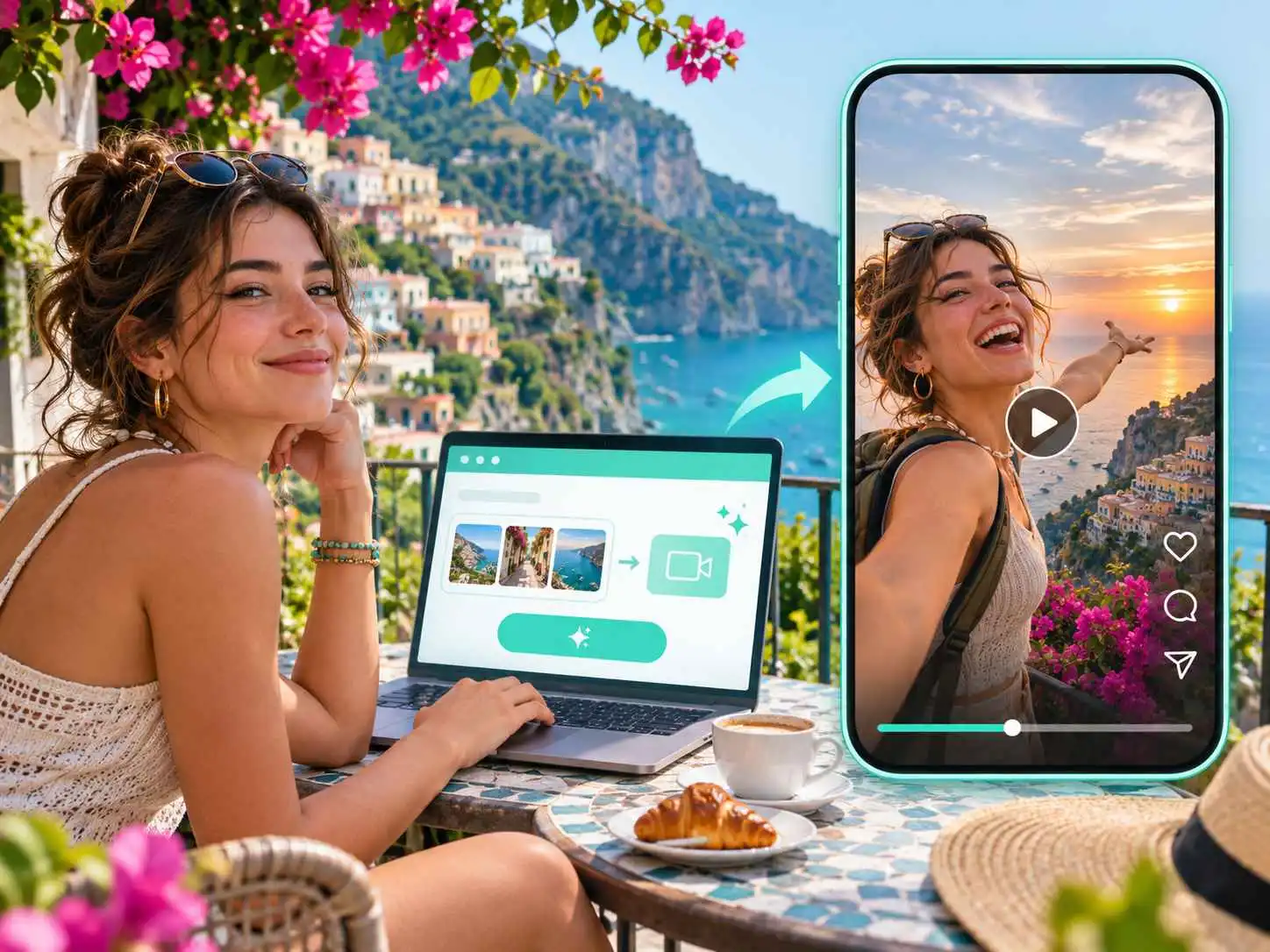
VideoCreate AI Pika AI alternative turns travel photos into a social media video.01 · Social Videos

Make Your Social Posts More Eye-Catching

Turn an idea or a favorite photo into a short video for Reels, TikTok, or YouTube Shorts. Create an opening shot, add movement to a still image, or try a new visual idea for your next post.

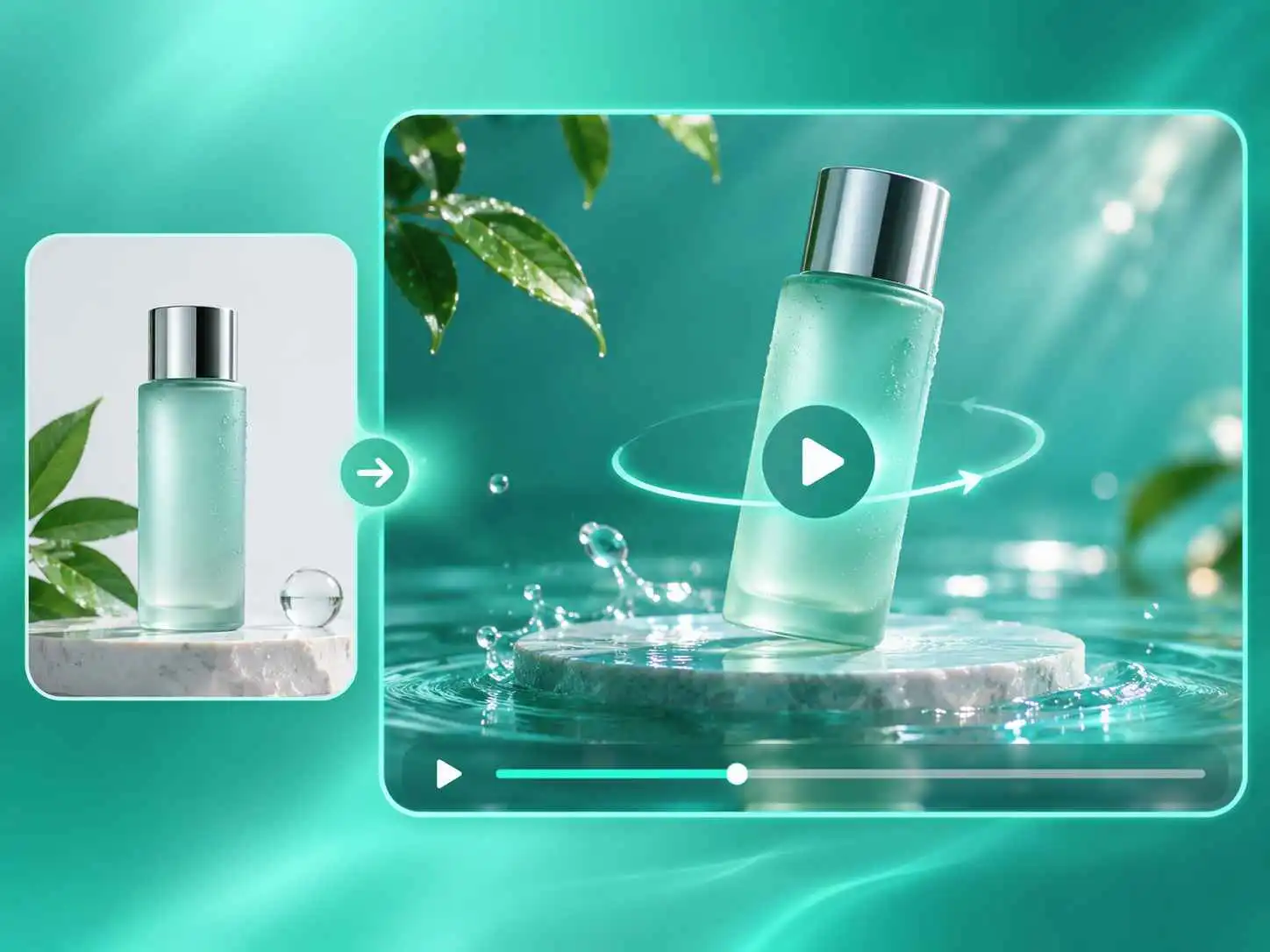
VideoCreate AI Pika AI alternative animates a skincare product photo for a video showcase.02 · Product Showcases

Turn Product Photos into Moving Showcases

Bring a product photo to life with a slow rotation, a camera push, or a background change. Use the resulting clip to explore ideas for a product page, launch announcement, or social post.

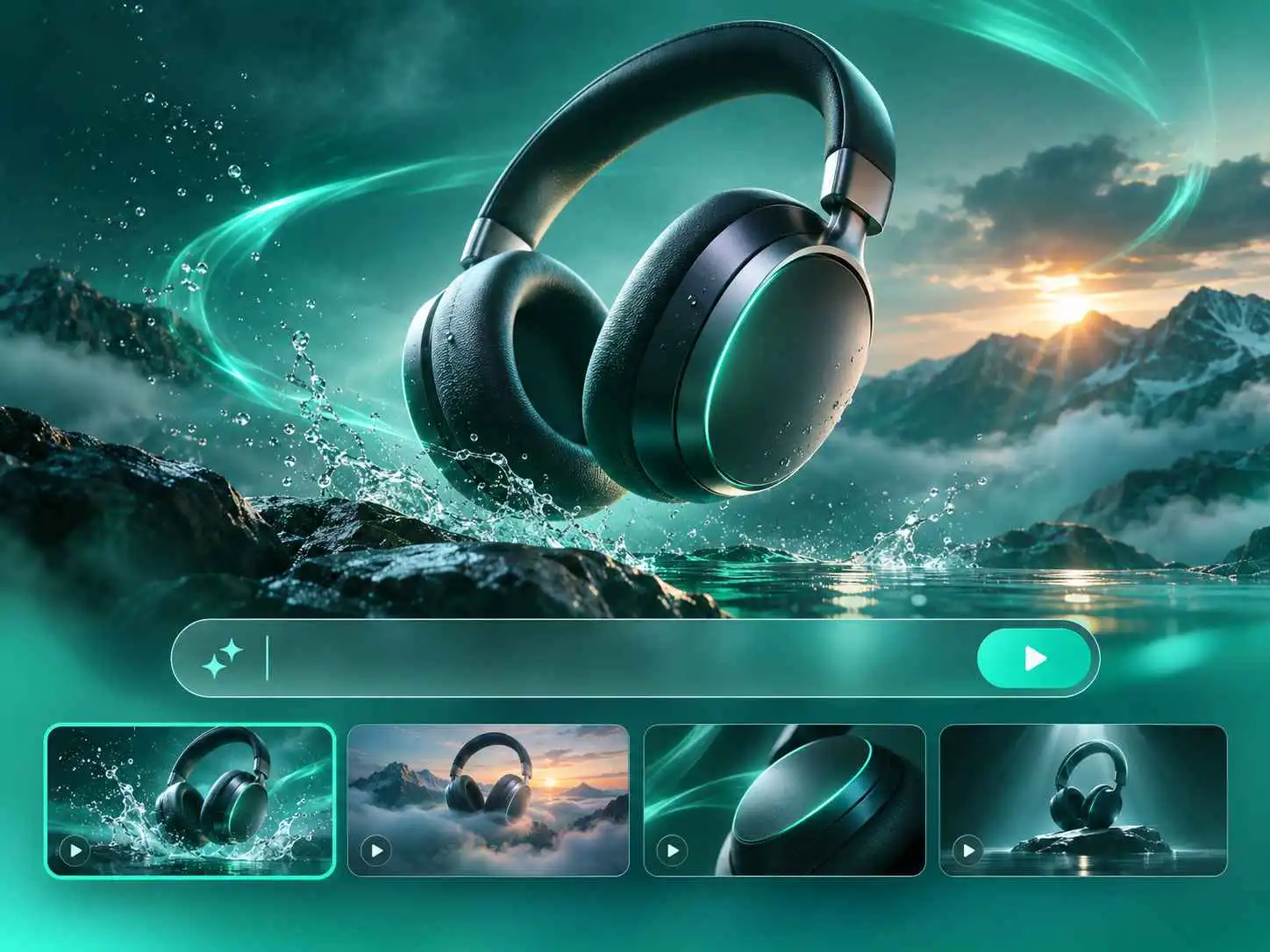
VideoCreate AI Pika AI alternative creates video ad concepts featuring wireless headphones.03 · Ad Ideas

Bring Your Next Ad Idea to Life

Turn a campaign idea into a short video draft. Describe the product, setting, and mood, then try different prompts or models to explore a few directions before choosing one for your ad.

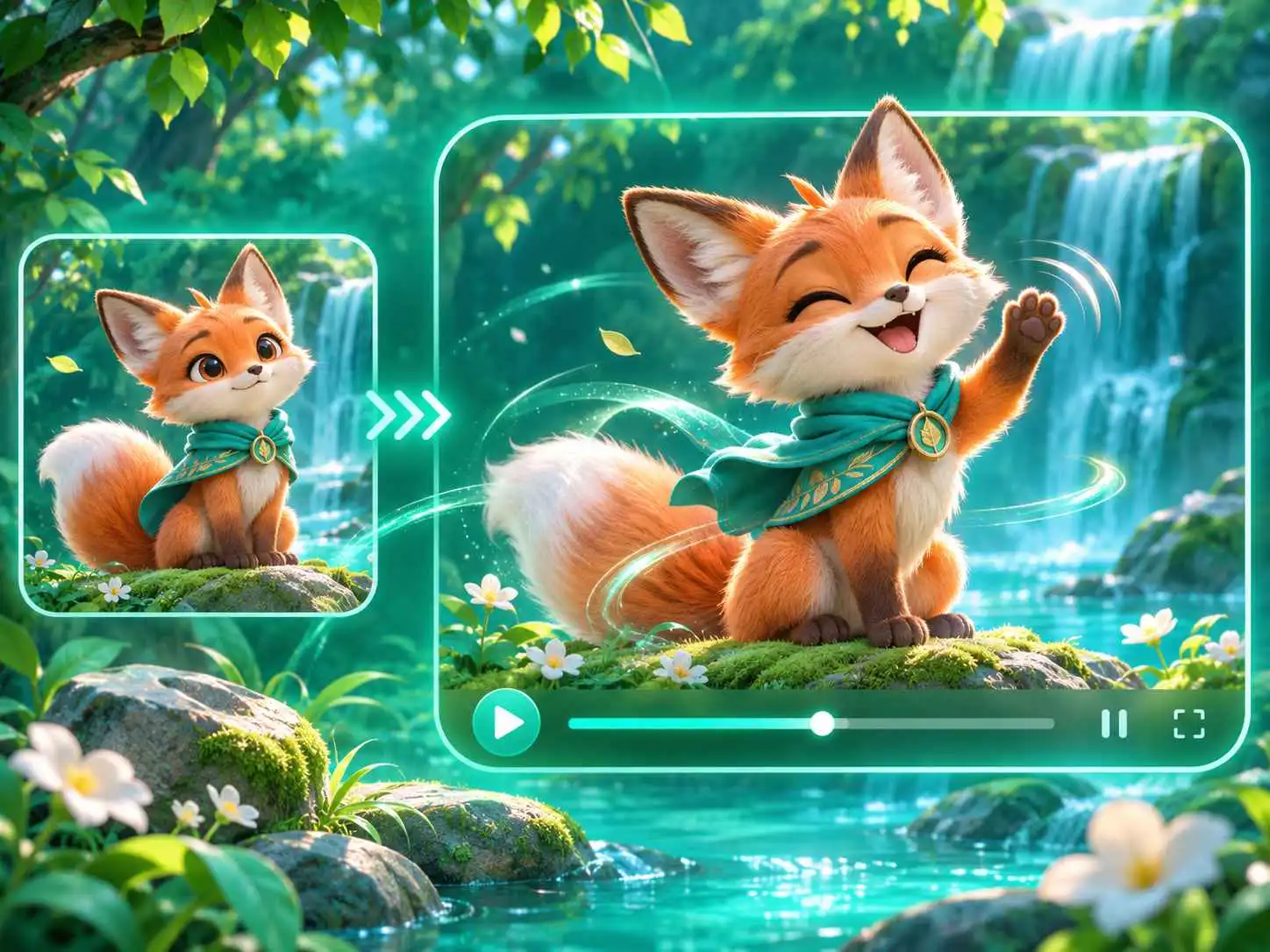
VideoCreate AI Pika AI alternative brings an illustrated fox character to life.04 · Character Animation

Give Your Characters Movement and Expression

Give an illustration or character image a little movement. Describe a gesture, expression, or action to create a short clip for a story, animation concept, or creative project.

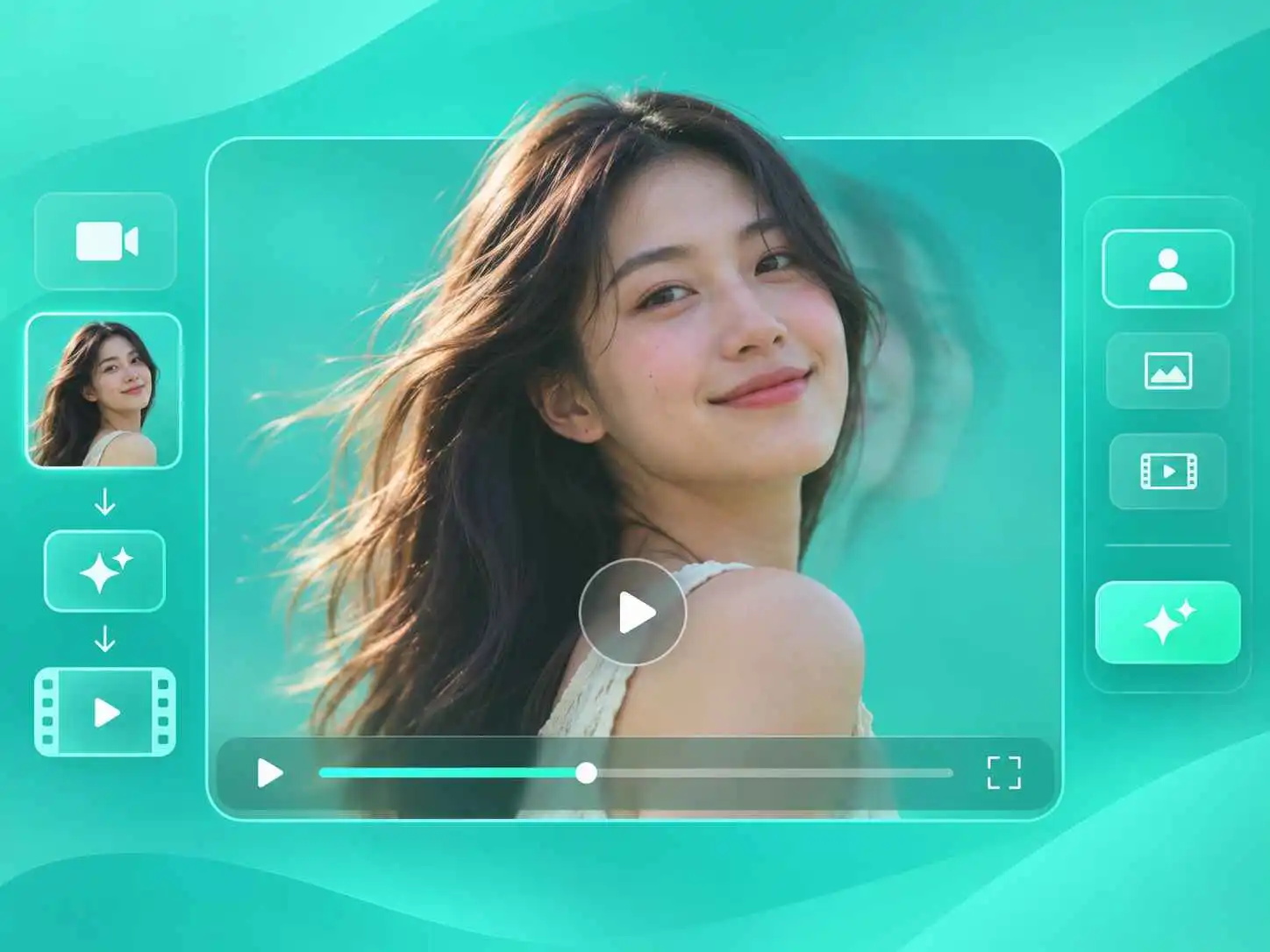
VideoCreate AI Pika AI alternative adds motion to a woman's portrait.05 · Portraits

Make Your Portraits Feel More Alive

Make a portrait feel more dynamic with a subtle head turn, a smile, or a gentle camera movement. Create an introduction for a portfolio, welcome message, or social profile.

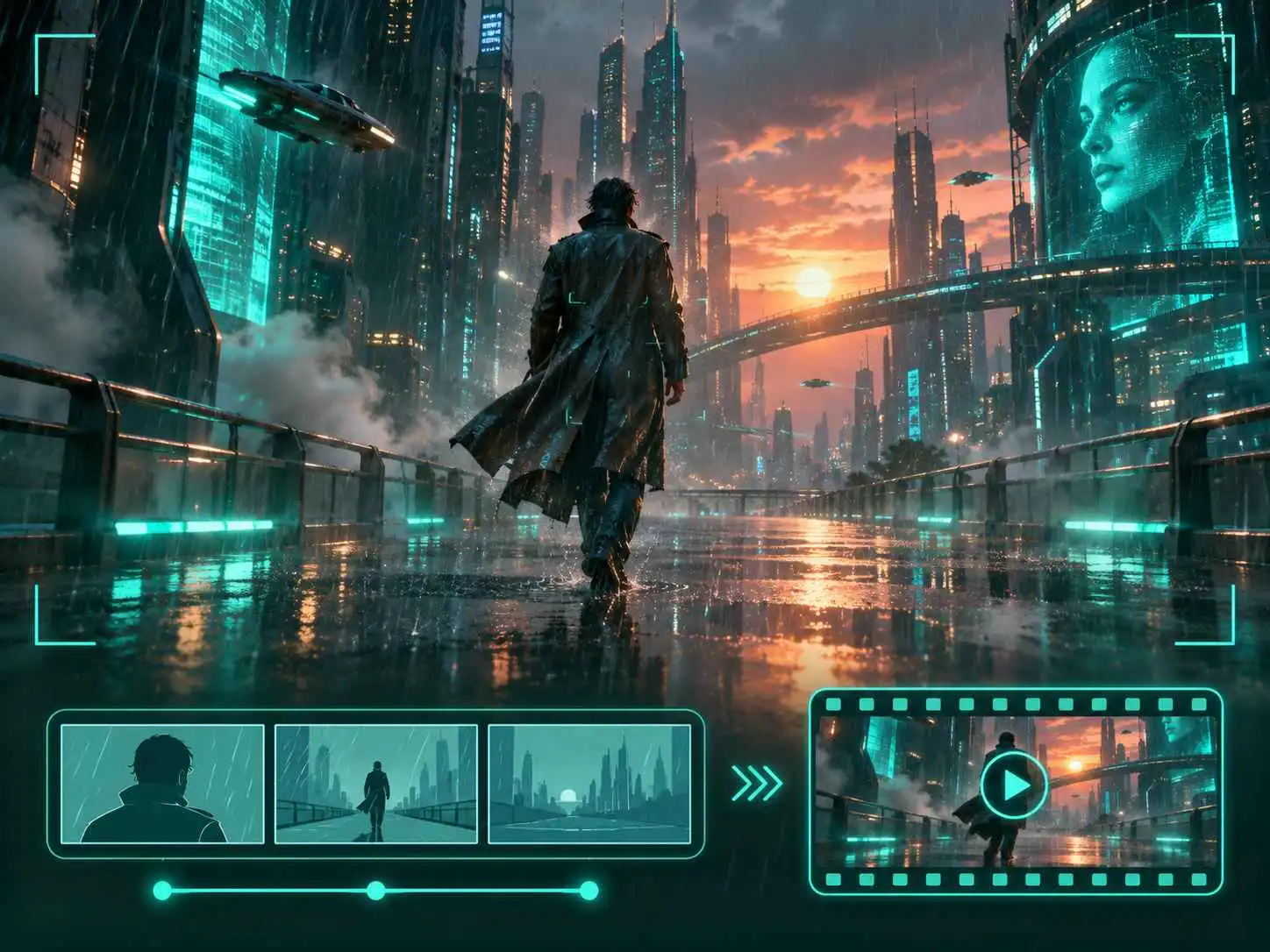
VideoCreate AI Pika AI alternative visualizes a futuristic city scene for a film concept.06 · Story Concepts

See Your Story Before You Film It

Turn a scene you have in mind into a video draft. Describe the characters, setting, and camera movement to explore the look of a short film, music video, or story before production begins.

Why Choose VideoCreate AI as an Alternative to Pika AI?

Start with an Idea or an Image

Have a scene in mind? Describe it in a prompt. Already have a photo or illustration? Upload it and tell the AI what you want to happen next.

Explore Multiple AI Models

Different models can bring a different look to the same idea. Choose from the available options and try another model when you want to explore a new direction.

Create Without Editing Experience

You don’t need to know your way around a video editing timeline. Describe the scene you want, generate a clip, and see what works for your project.

Adjust the Video to Fit Your Project

Choose from the available aspect ratios, durations, and resolutions for your selected model. Create a vertical clip for social media or a horizontal video for a presentation.

Refine Your Ideas as You Go

If the first result isn’t quite right, change the prompt and try again. A smaller movement or a different camera angle may bring the scene closer to what you imagined.

Get Started for Free

Try VideoCreate AI with the free credits available to you. You can check the cost before generating, as credit usage depends on the model and settings you choose.

What Creators Say About VideoCreate AI

VideoCreate AI Pika AI alternative portrait of social media creator Nora Patel.Nora PatelSocial Media Creator

“I needed an opening shot for a short travel video but didn’t have the footage I wanted. I described the scene, tried a couple of versions, and found one that worked with the rest of my reel.”

VideoCreate AI Pika AI alternative portrait of e-commerce seller Evan Brooks.Evan BrooksE-commerce Seller

“I uploaded a product photo to see how it might look in a launch video. The first movement was a little too fast, so I changed the prompt. The next version gave me a useful draft to share with my team.”

VideoCreate AI Pika AI alternative portrait of creative director Claire Morgan.Claire MorganCreative Director

“I like being able to explore a visual direction before arranging a shoot. A few short clips helped us discuss the lighting and camera movement with the client, and we had a clearer brief afterward.”

VideoCreate AI Pika AI alternative portrait of marketing manager Daniel Rivera.Daniel RiveraMarketing Manager

“We had one campaign idea and wanted to see it in a few different styles. Trying different models helped us compare the options and choose a direction for the next round of work.”

VideoCreate AI Pika AI alternative portrait of educator Aisha Bennett.Aisha BennettEducator

“I wanted a short scene to introduce a lesson, but I don’t have much video editing experience. I started with a simple description and adjusted it until the clip fit the topic.”

VideoCreate AI Pika AI alternative portrait of independent illustrator Mei Tan.Mei TanIndependent Illustrator

“I tried animating one of my character illustrations. Smaller movements worked better for the scene I had in mind, and it was fun seeing the character move while keeping the original artwork as a starting point.”

Pika AI Alternative FAQs

VideoCreate AI is an option for creators who want to generate videos from text or images. It offers a selection of video models, giving you different ways to explore a scene, animate an image, or develop a visual idea.

Yes. VideoCreate AI is free to start with available credits. The credits required depend on the model and generation settings, so check the cost shown before creating a video.

Yes. Upload an image and describe the movement you want to see. You can animate a portrait, product image, illustration, or another visual. Starting with a clear subject and one main action makes it easier to review and refine the result.

Both provide AI video creation tools. Pika offers its own models and features, including Pikaffects. VideoCreate AI provides access to multiple models through its workspace, allowing you to explore different options for a project. Check each platform’s current features and costs to find the right fit.

No. You can begin with a prompt or an image and generate a video draft without using a video editing timeline. After previewing the result, you can adjust your prompt or settings and try another version.

You can explore social clips, product concepts, character animations, and visual ideas for campaigns. The result depends on your input, prompt, and selected model.

Pika effects are features offered by Pika. VideoCreate AI lets you explore creative motion and visual styles using its available models and prompts, but the controls and results may differ.

Credit usage depends on the model and generation settings you choose. Review the cost displayed in the workspace before generating your video. Once your free credits are used, you can check the available options for continuing to create.